Print PortalRubix demo Open the portal ↗

Media Group · Web-to-print portal · Rubix demo

Ordered in minutes. Press‑ready by default.

A private ordering portal for each client: stock items, personalised stationery with live proofs, manager approvals, stock tracking and spend reports. Behind it, an admin built for Media Group, where every personalised order arrives as a checked, print-ready PDF.

Every screen on this page is the working portal, captured with demo data for Rubix.

Order from stockPersonalised templatesLive 3D previewPDF proofsManager approvalsCost centres & PO numbersLive stock levelsLow-stock alertsSpend reportsInvoicing CSVPrint-ready PDF/X-4Automatic preflightSend to printerLight & dark themesWorks on phones
3roles: client user, client manager, Media Group admin
15automatic checks on every print file before it can go to a printer
0artwork set by hand for personalised orders: the file is built from the client's approved proof
EUhosted in Dublin and Ireland, beside each other, for speed

00How it works

From a client's click to a printer's inbox

The whole loop runs in the portal. Nobody re-keys an order, retypes a business card or resets artwork.

  1. 1

    Sign in

    Each client has its own portal, with its own products, offices, prices and logo. Invite-only.

  2. 2

    Order

    Pick stock items, or personalise a template on a live 3D preview. Both go in one basket.

  3. 3

    Approve the proof

    A PDF proof of exactly what will print. Nothing goes in the basket until it's approved.

  4. 4

    Manager signs off

    Optional per client: a named manager approves or rejects, against a cost centre and PO.

  5. 5

    Print file made

    Media Group gets the order with a preflighted PDF/X-4 file, built to the printer's spec.

  6. 6

    Print & dispatch

    Send the file to the printer in one click, mark the order in production, then dispatched.

01The client portal

What your clients see

Simple enough to use without training: every page says what to do next, and the client never has to wonder what will print.

A portal that feels like theirs

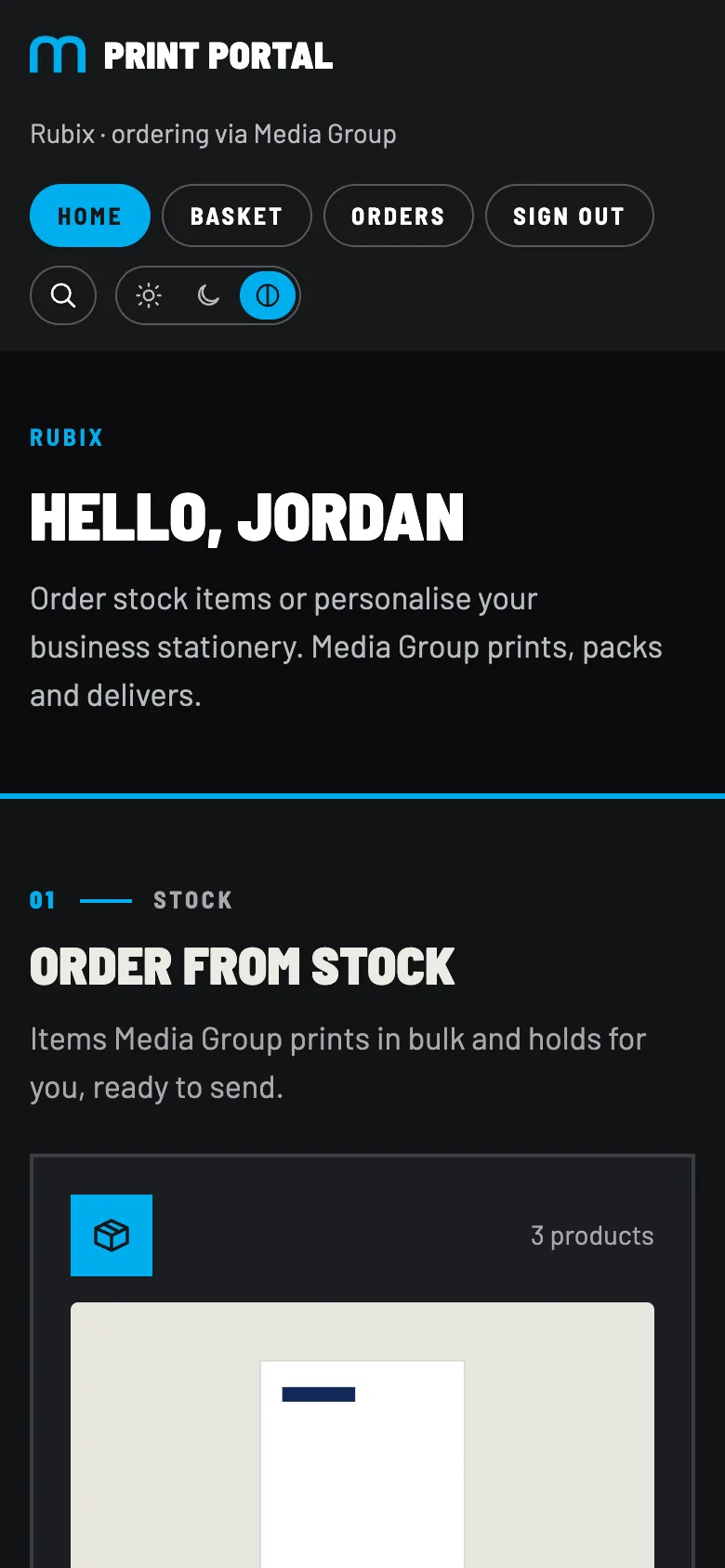
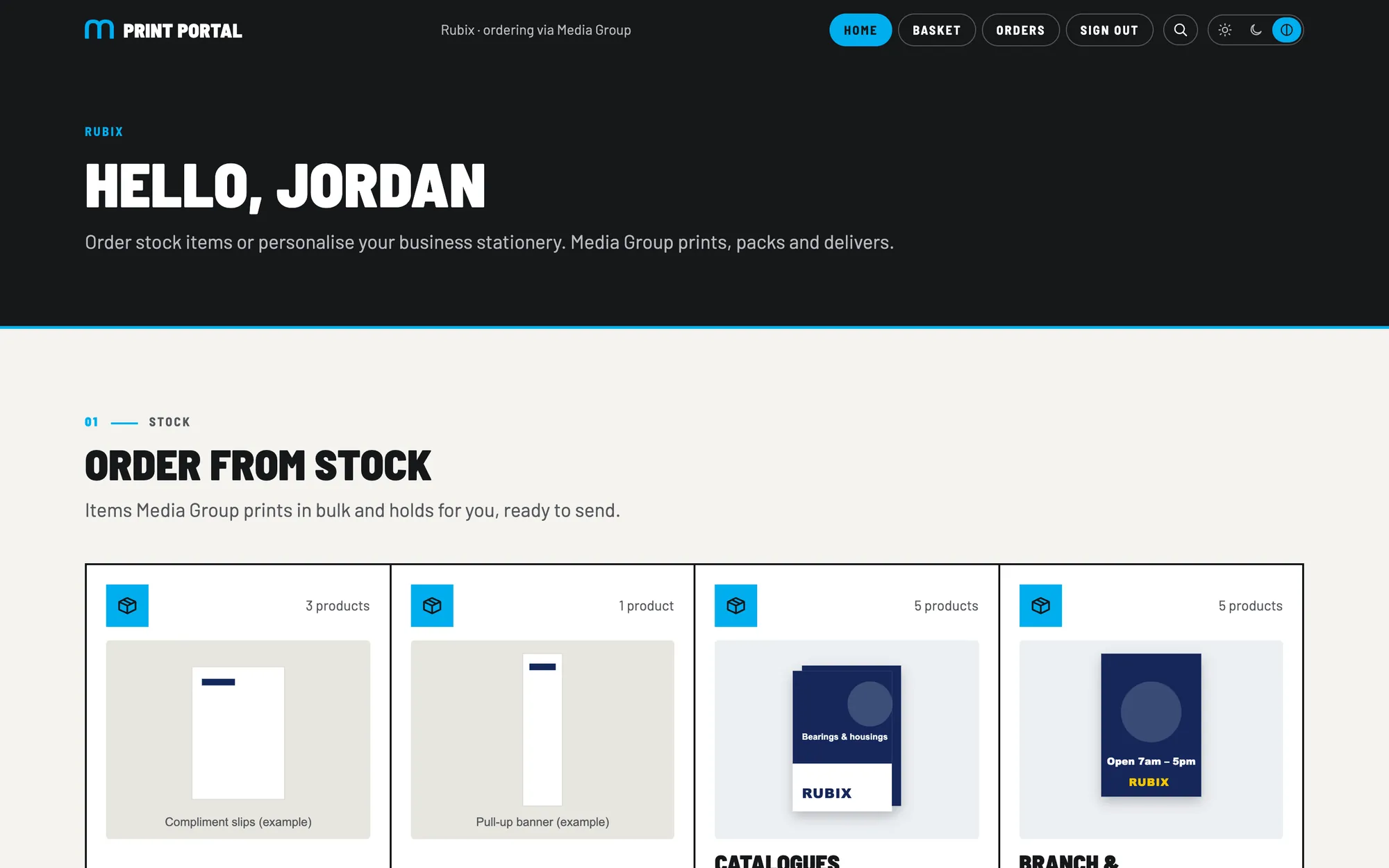
Each client signs in to a home page with their name on it, the items they can order, and their recent orders.

  1. Their company, their portal. Branded per client, and they only ever see their own products and orders.
  2. Search from any page. One icon opens a big search box; the “/” key does the same.
  3. Light or dark. Follows their device, or they choose.
  4. Order from stock first, then Personalise: the two ways to order, in clear sections.
  5. Categories with previews and a product count, so they can see what's inside.
Home · Rubix
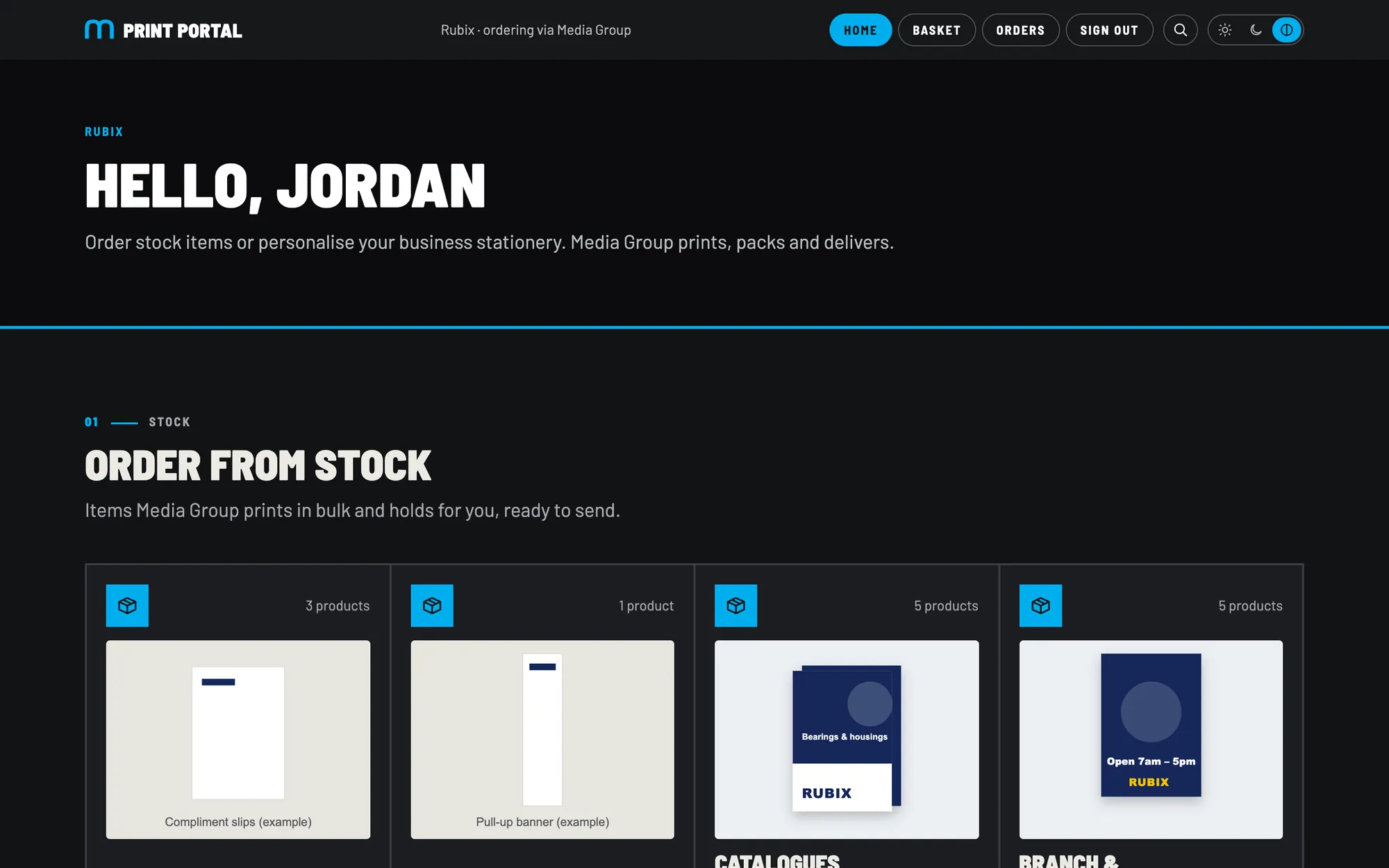
The client home page for Rubix

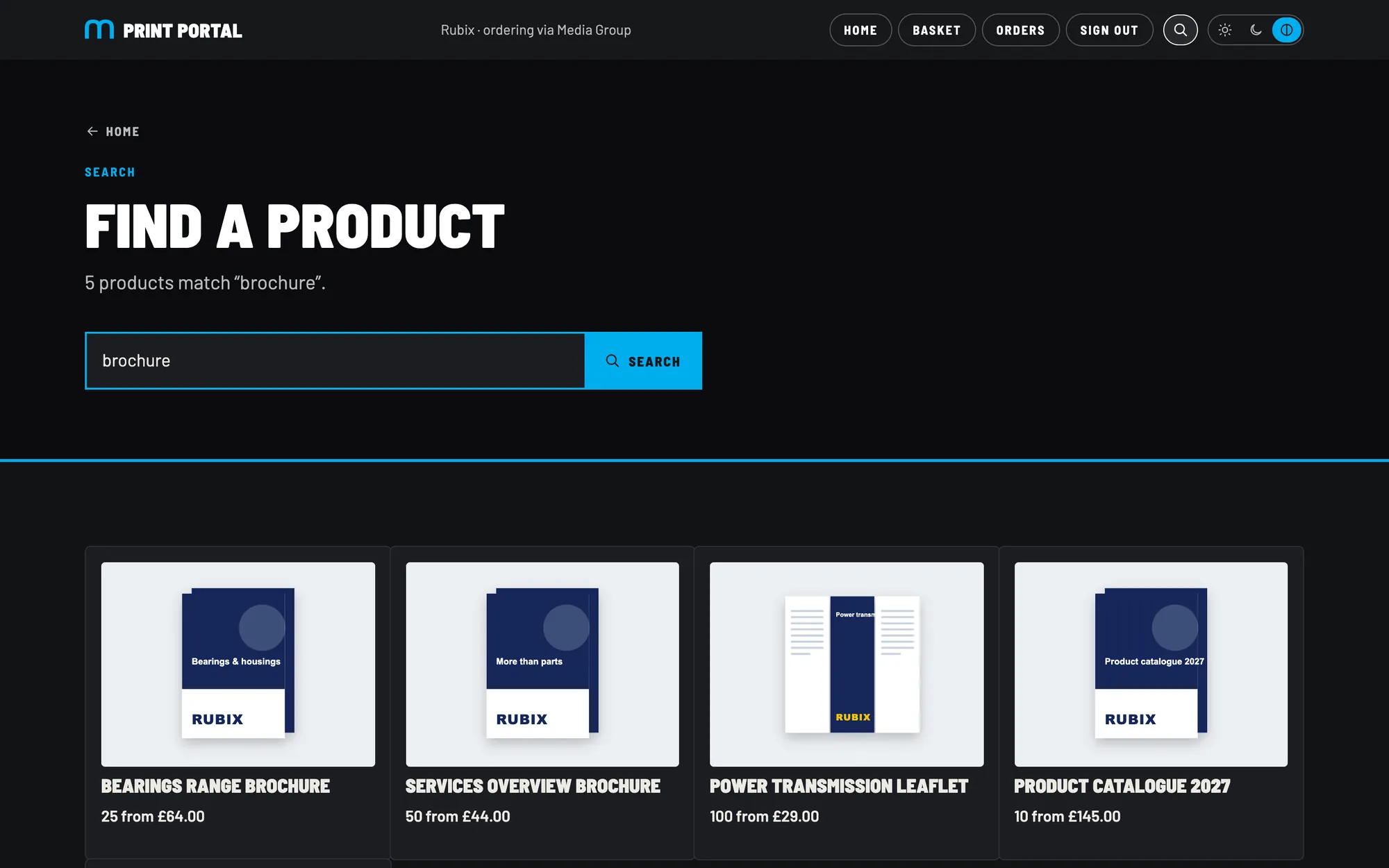
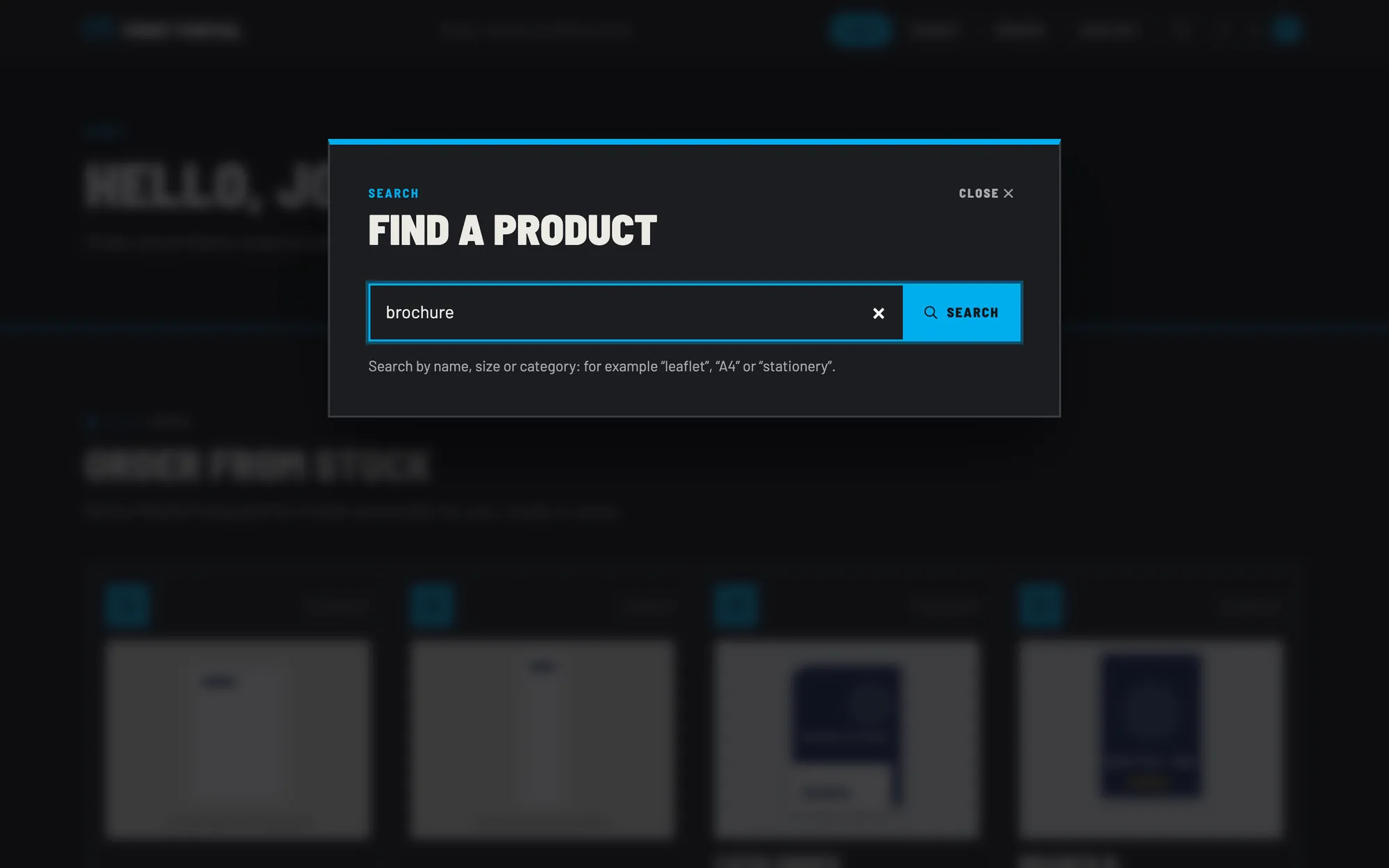
Find anything in seconds

Search matches names, sizes and categories, and copes with plurals: “brochures”, “A4” and “safety” all work.

  1. A big search box over the page, ready to type in.
  2. Helpful hints about what they can search for.
Search results for brochure
Results, as product tiles

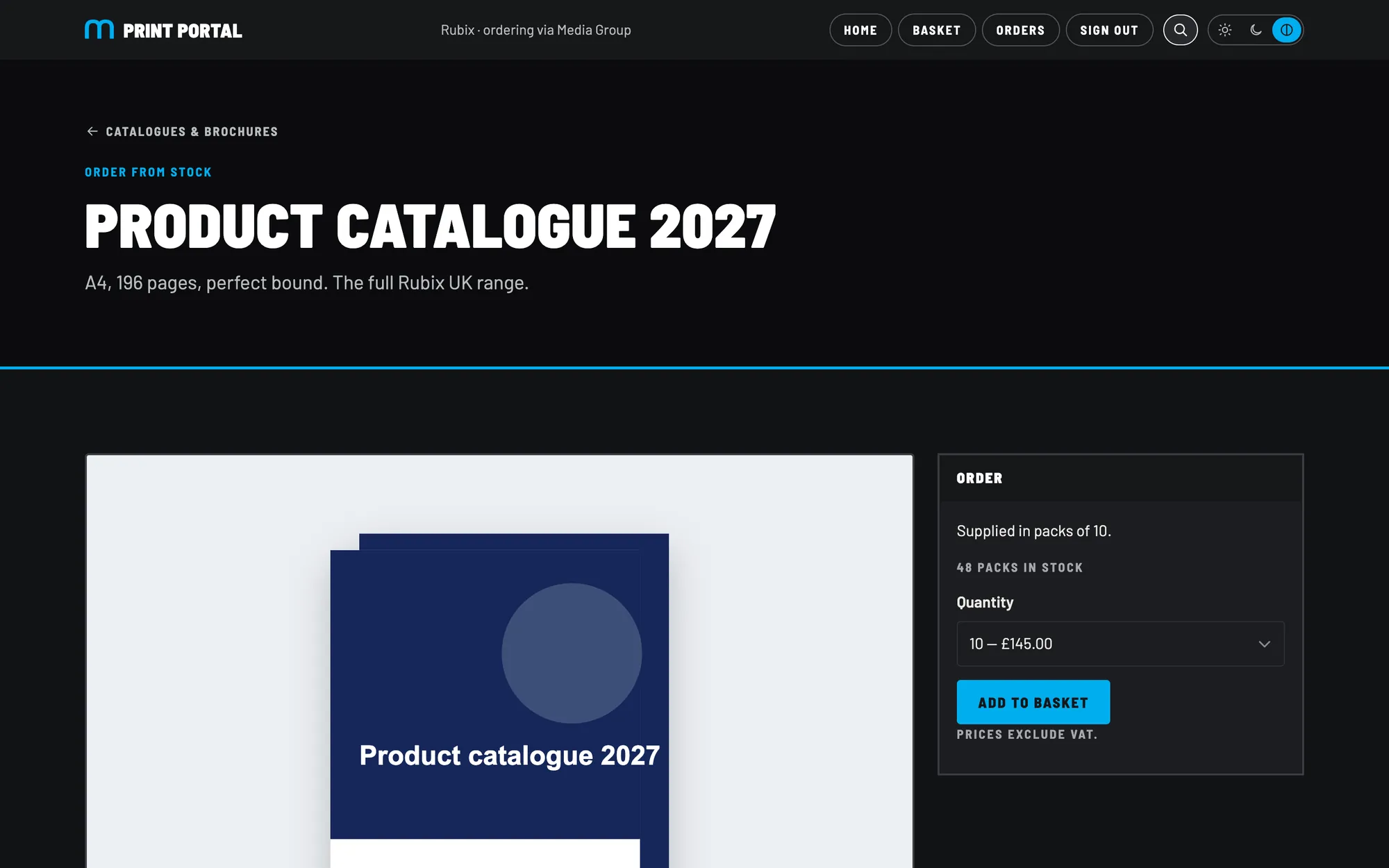
Stock items, with live stock levels

For items Media Group prints in bulk and holds, the client sees how many packs are left. They can't order more than there is.

  1. Packs in stock, live, straight from Media Group's stock records.
  2. Price breaks as a simple quantity list. Quantities that need more packs than are left are greyed out.
  3. Add to basket in one click.
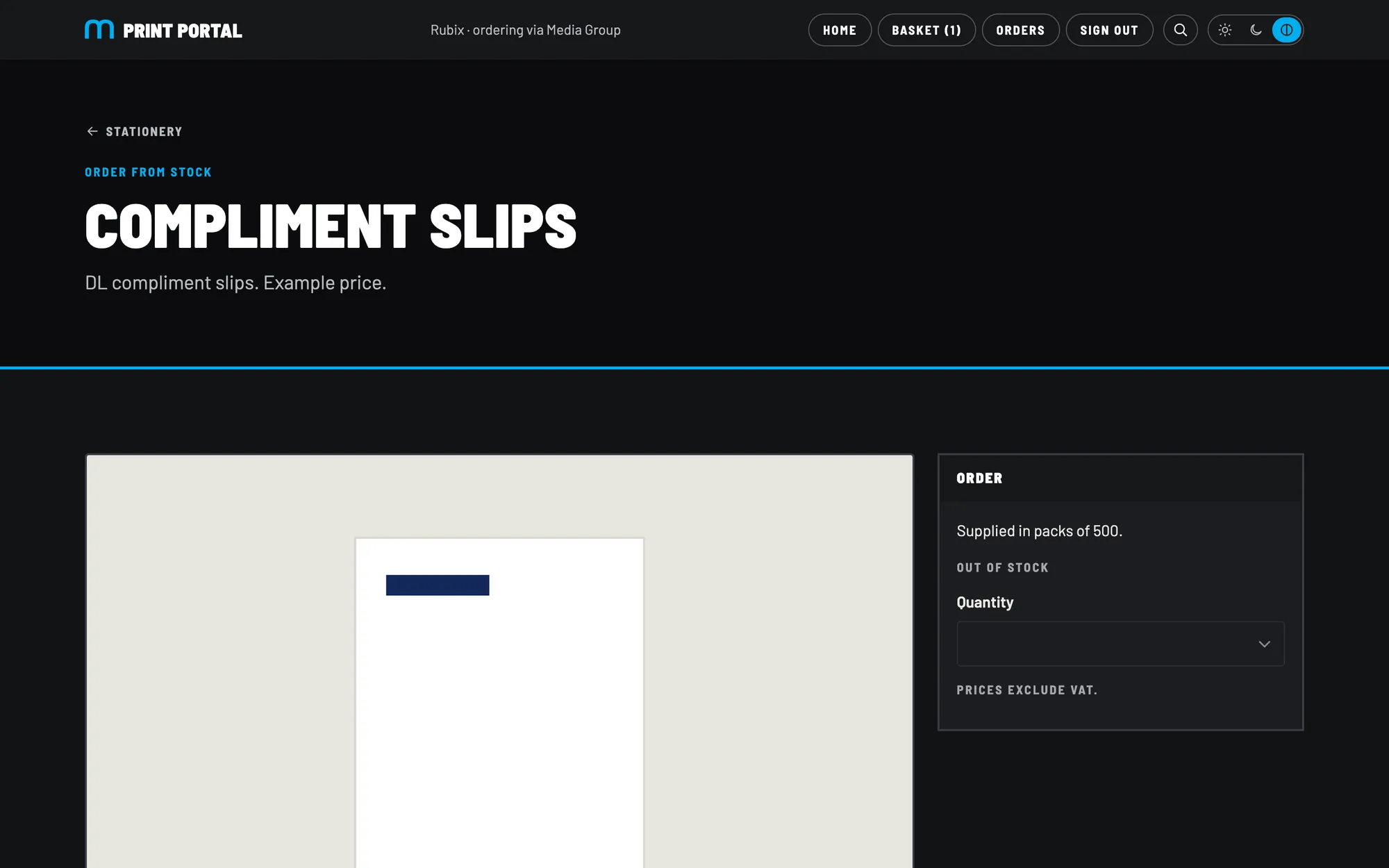
An out of stock item
Out of stock: no Add to basket, so no awkward phone calls
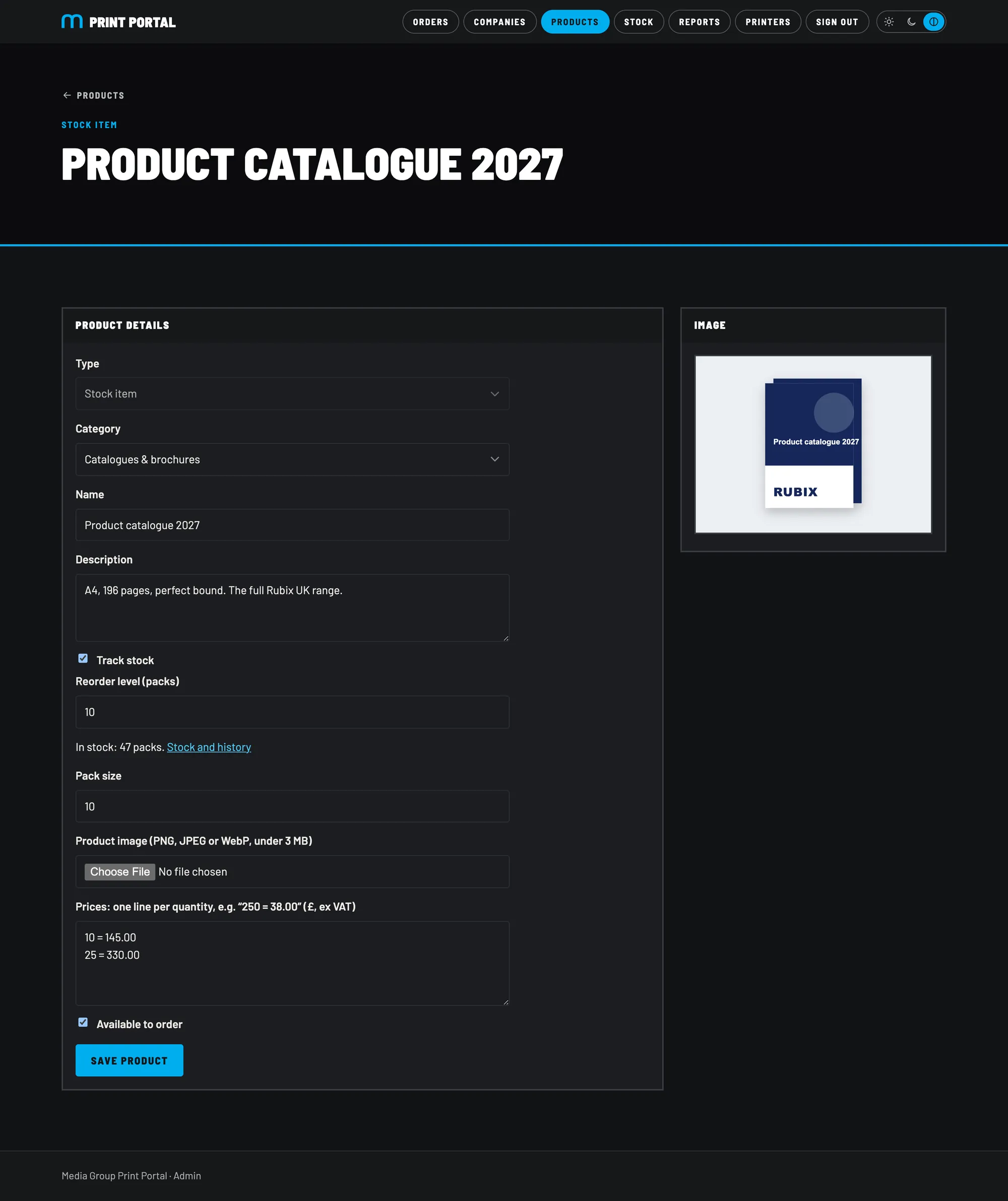
Product catalogue 2027
A stock product page

The star of the show

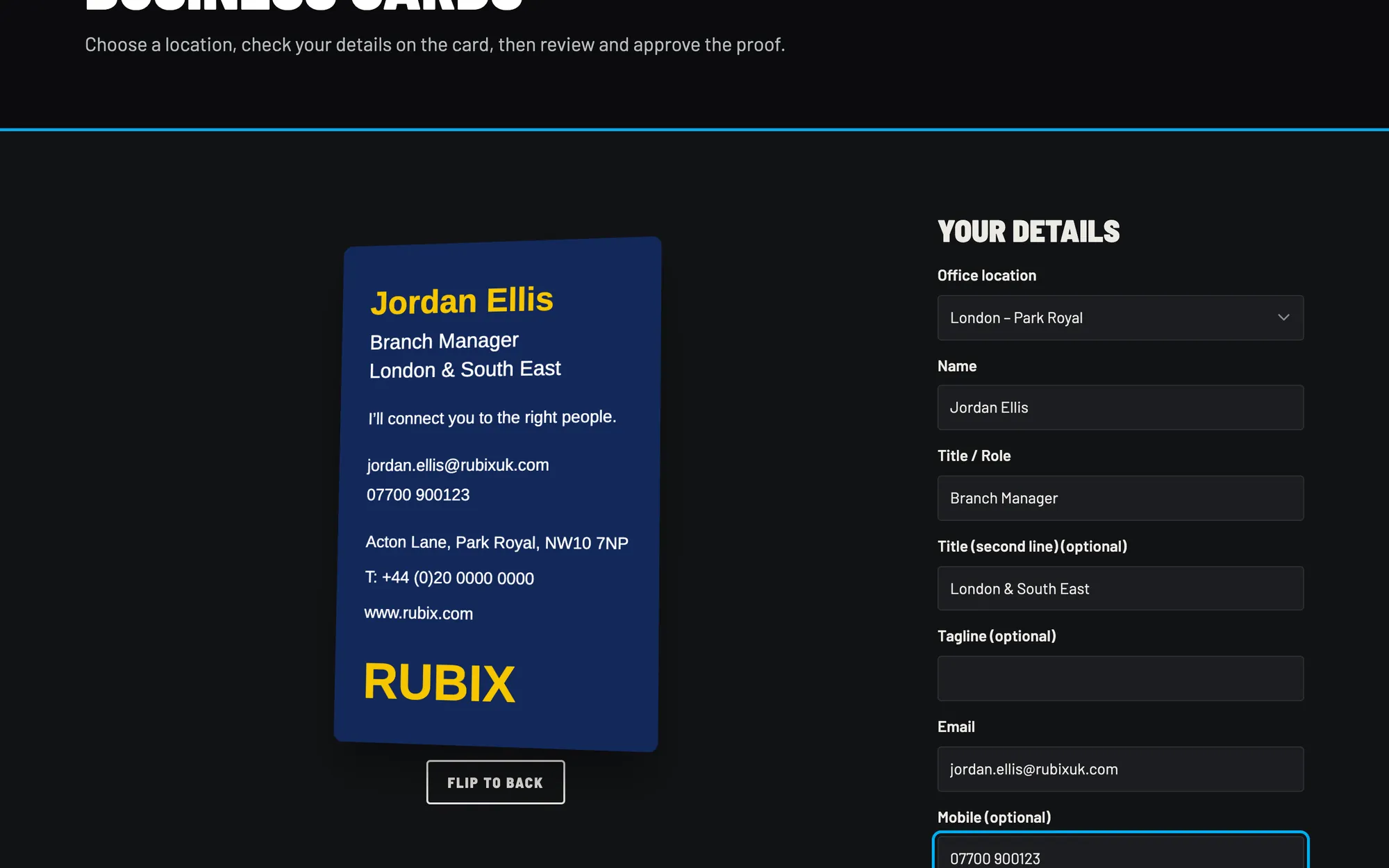
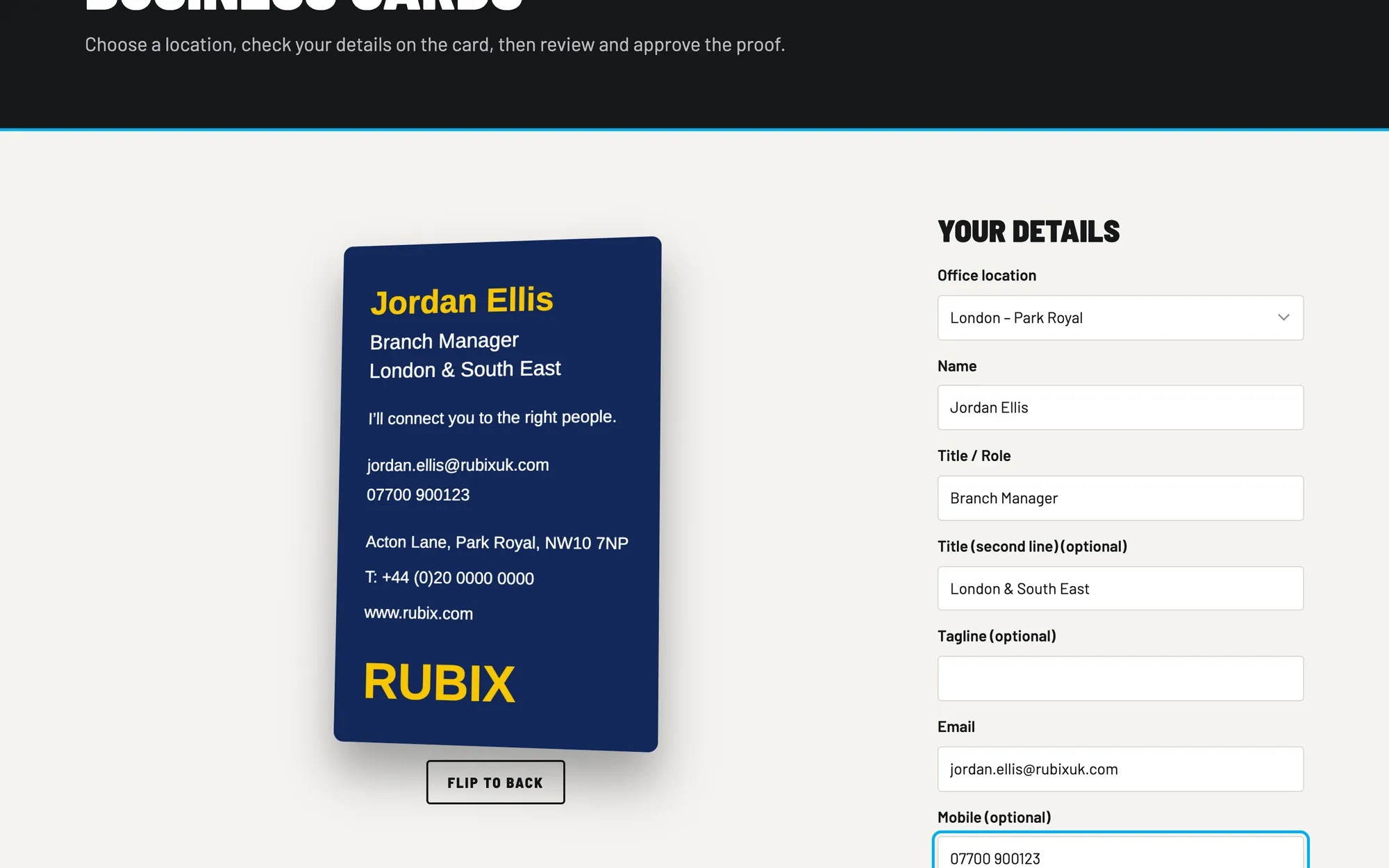
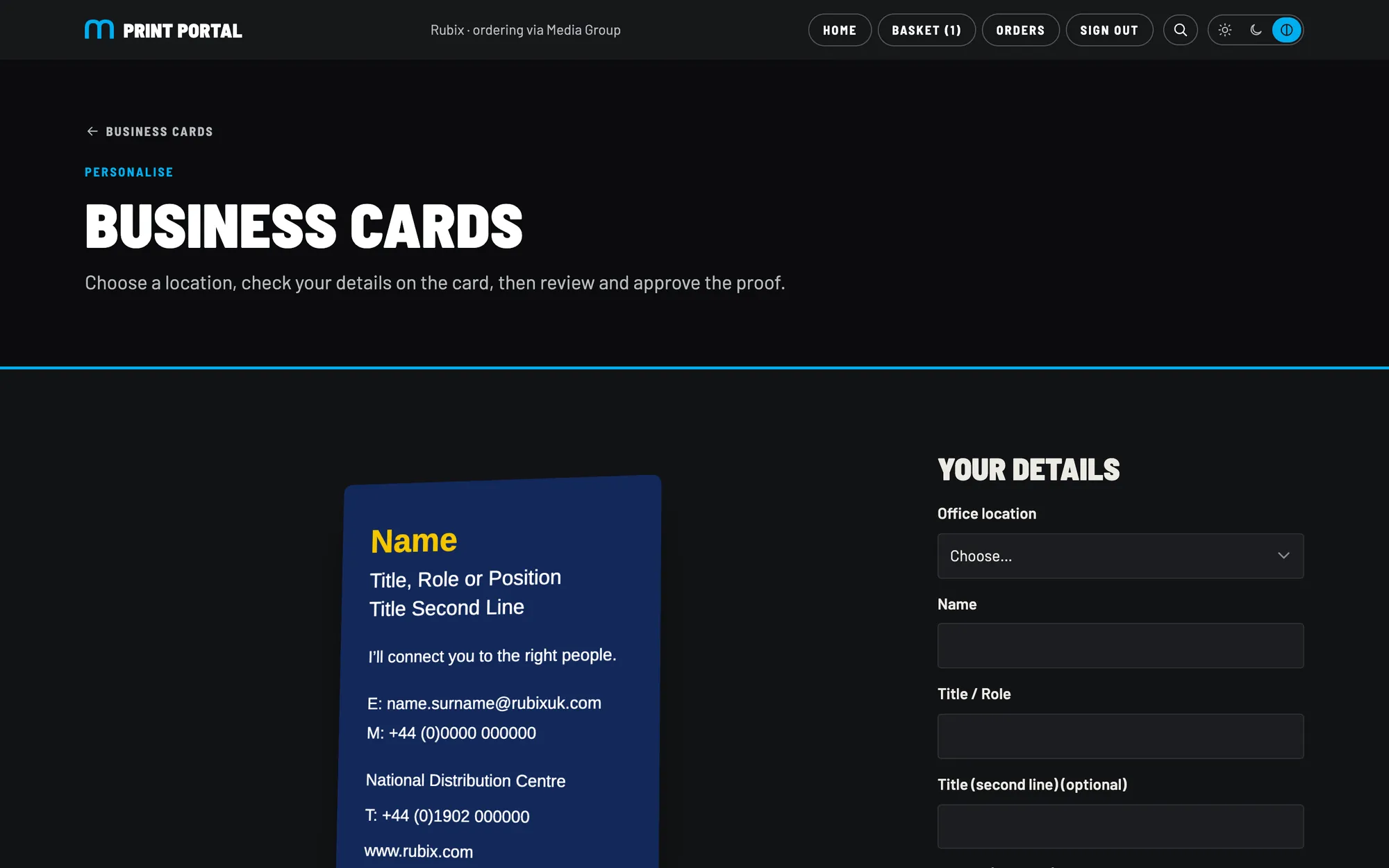
Business cards, personalised live

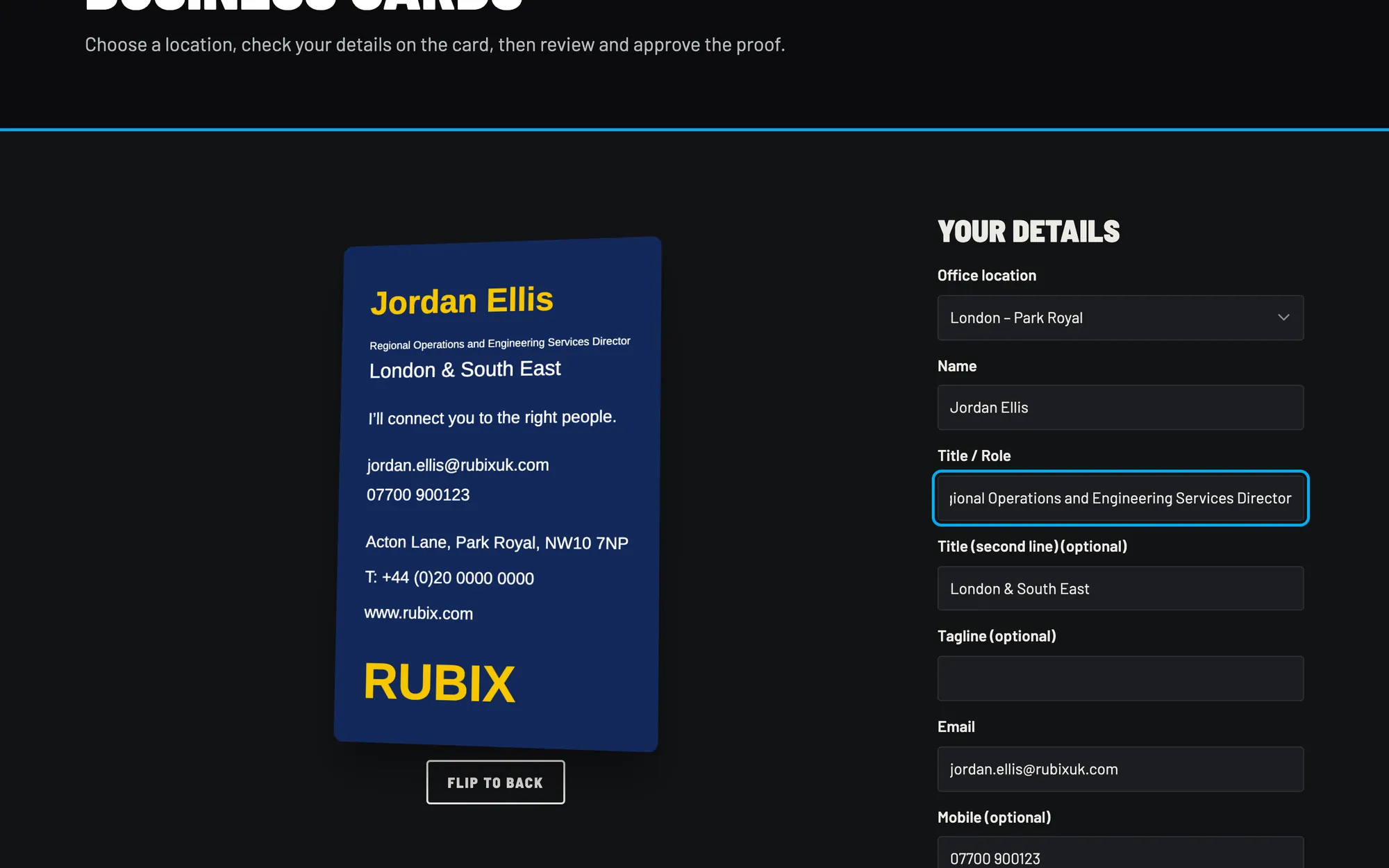
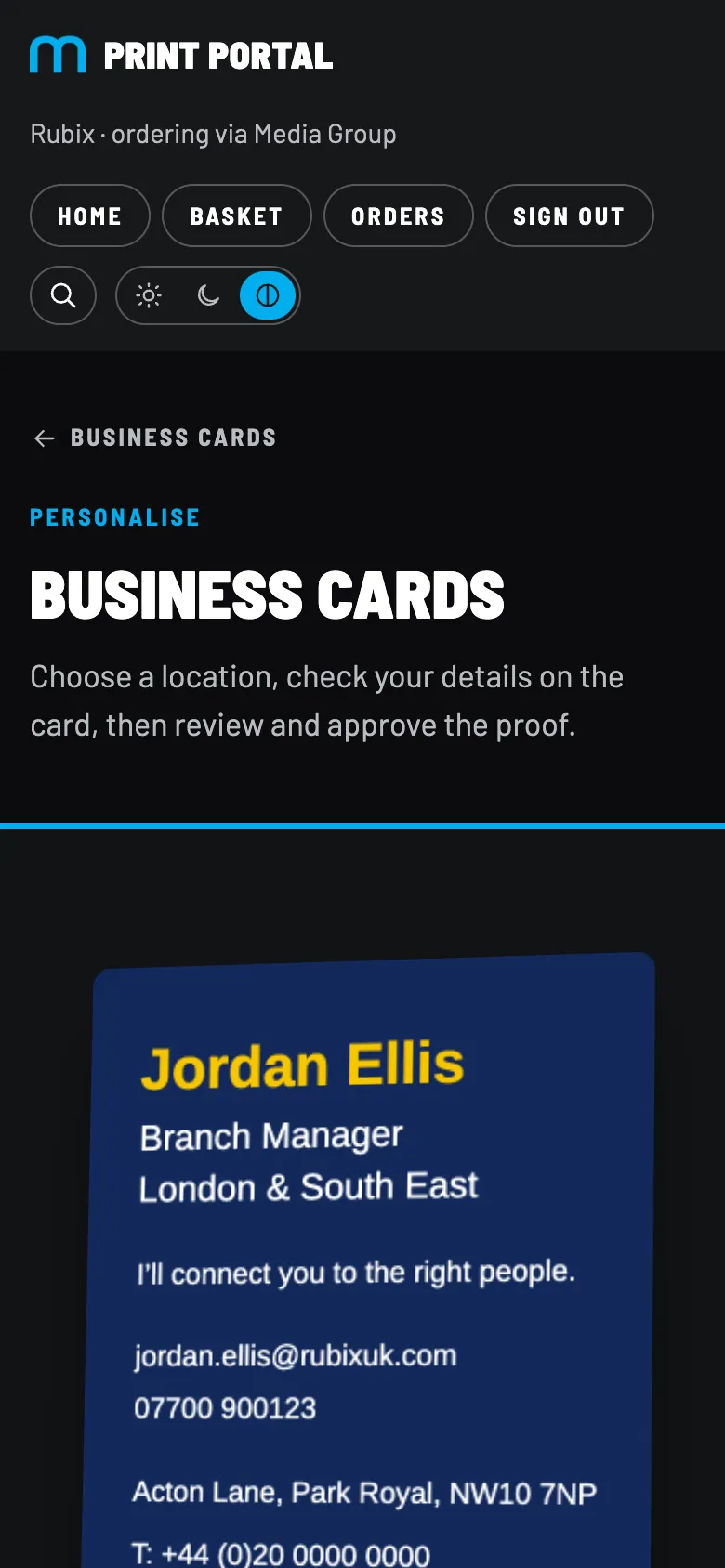
Staff choose their office and type their details. The card updates as they type, on a live 3D preview that tilts and flips, in Rubix's own layout.

  1. Choose an office and its address and phone fill in.
  2. The real card, live. What they see is what prints.
  3. Only their details are editable: name, title, email, mobile. Logo, layout and colours are locked.
  4. Office details on the card, exactly as Media Group hold them.
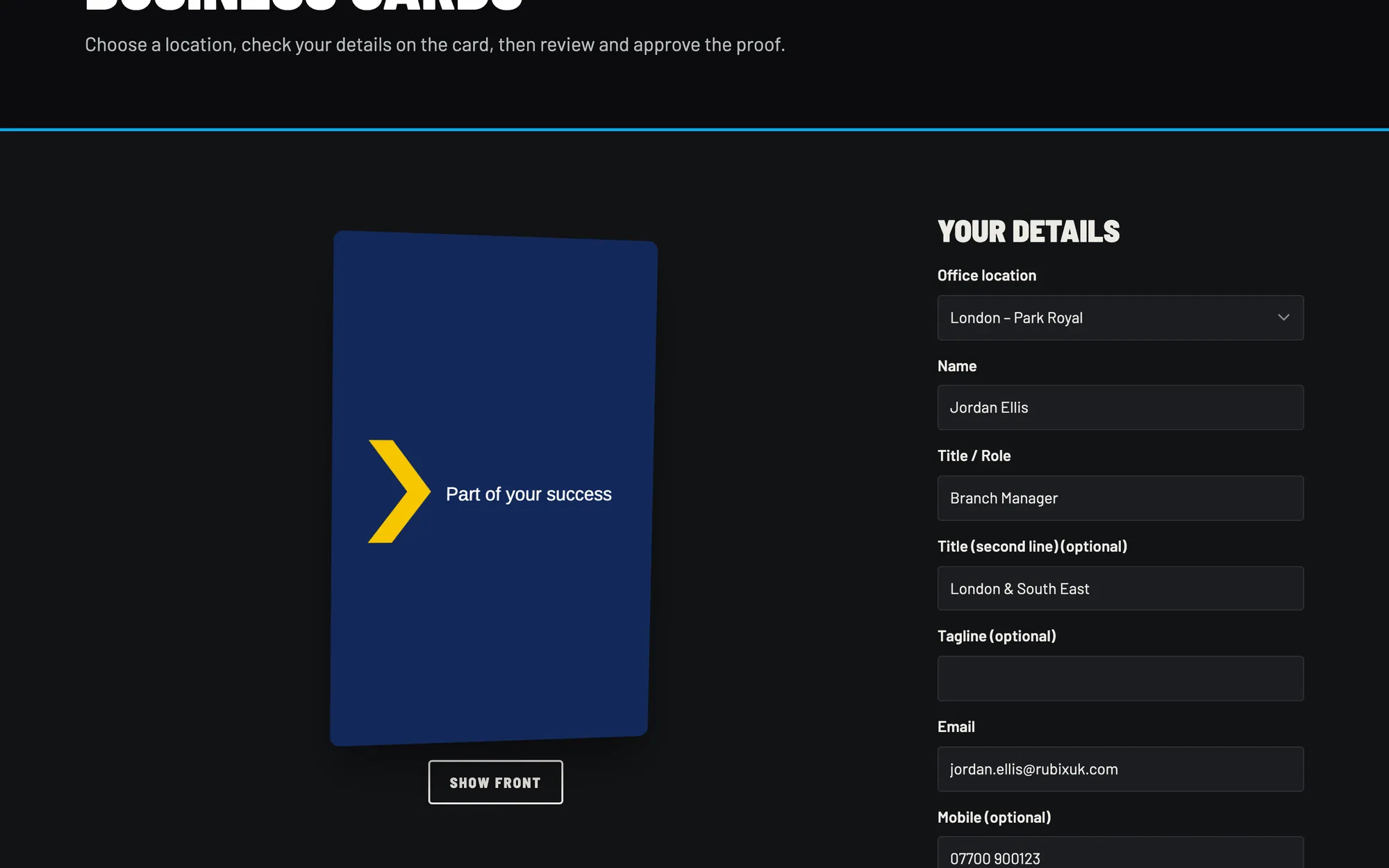
  5. Flip to the back to check the reverse.
Business cards
The business card editor with a live 3D preview

A proof they approve before anything prints

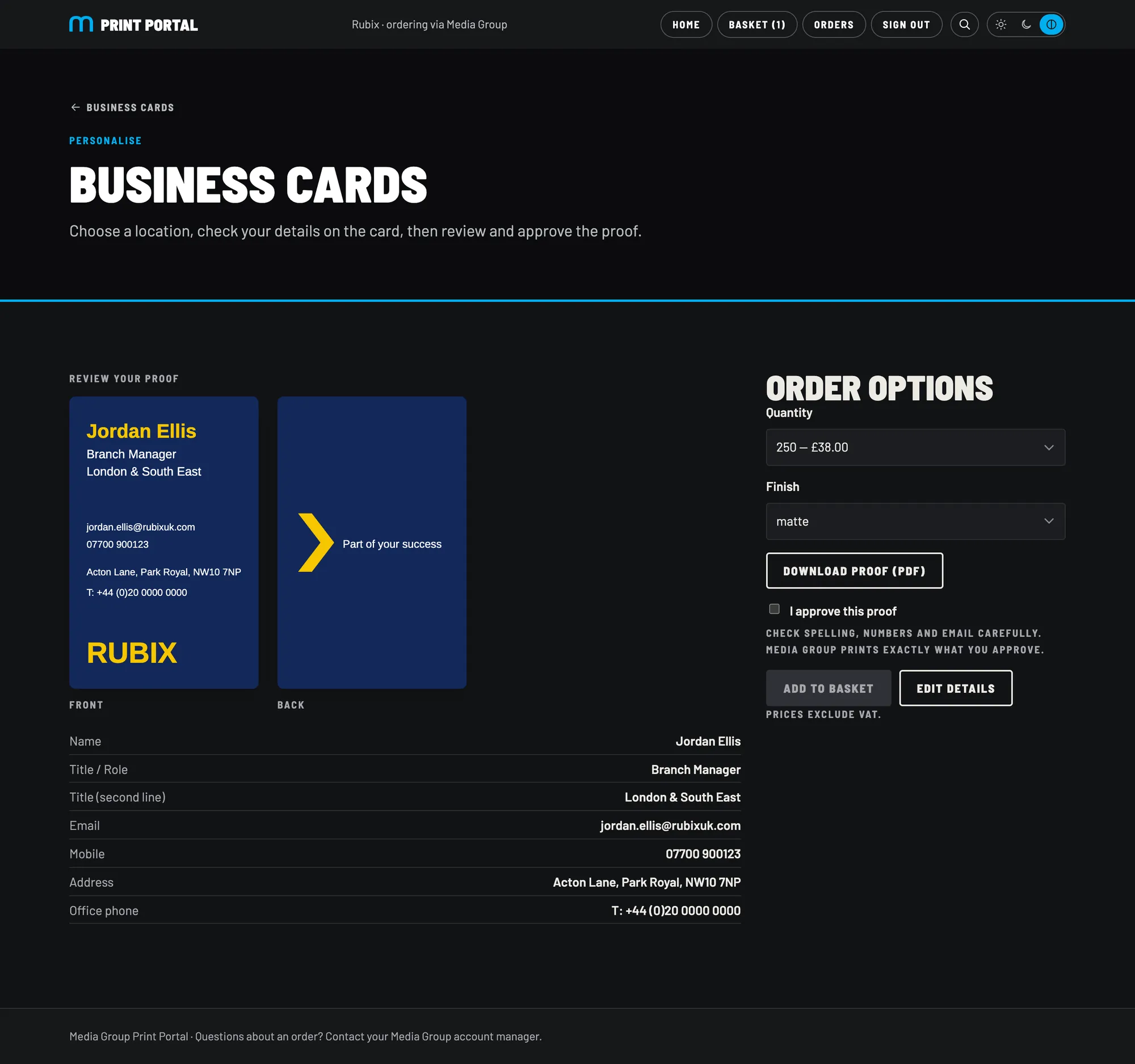
Both sides, the quantity and the finish, with a PDF proof to download and share. The approval is recorded against the order.

  1. Front and back side by side, exactly as they'll print.
  2. Quantity and finish, with prices.
  3. Download the proof (PDF) to check or forward.
  4. “I approve this proof” must be ticked before it can go in the basket.
Review your proof
The proof review page

One basket, one checkout

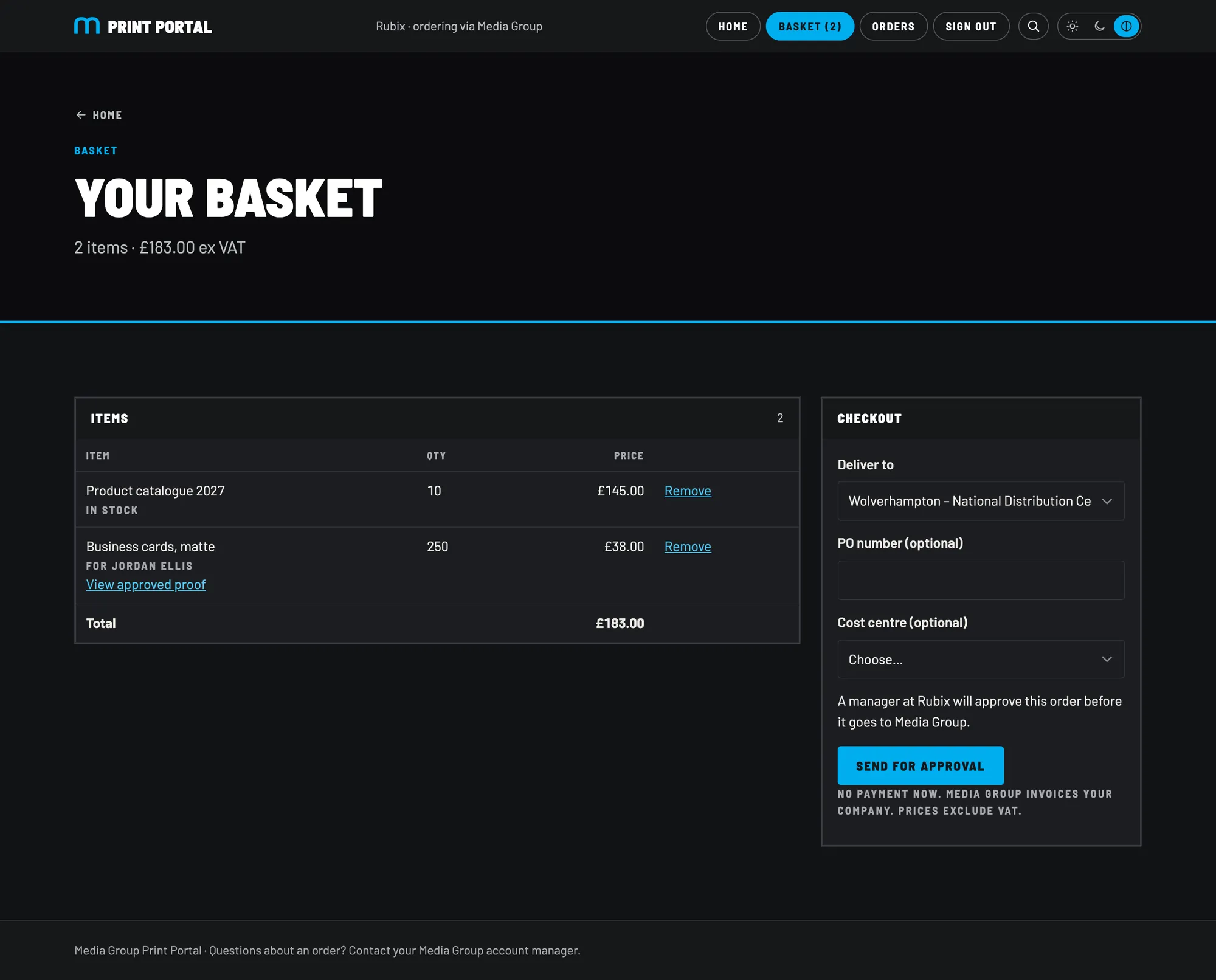
Stock and personalised items together. No payment step: Media Group invoices as now.

  1. Mixed basket, with a link back to each approved proof.
  2. Stock checked again at checkout, so nothing is promised that isn't there.
  3. Deliver to any of their offices, or a typed address.
  4. PO number and cost centre, optional or required, set per client.
  5. Send for approval when the client wants a manager to sign orders off.
Your basket
The basket and checkout

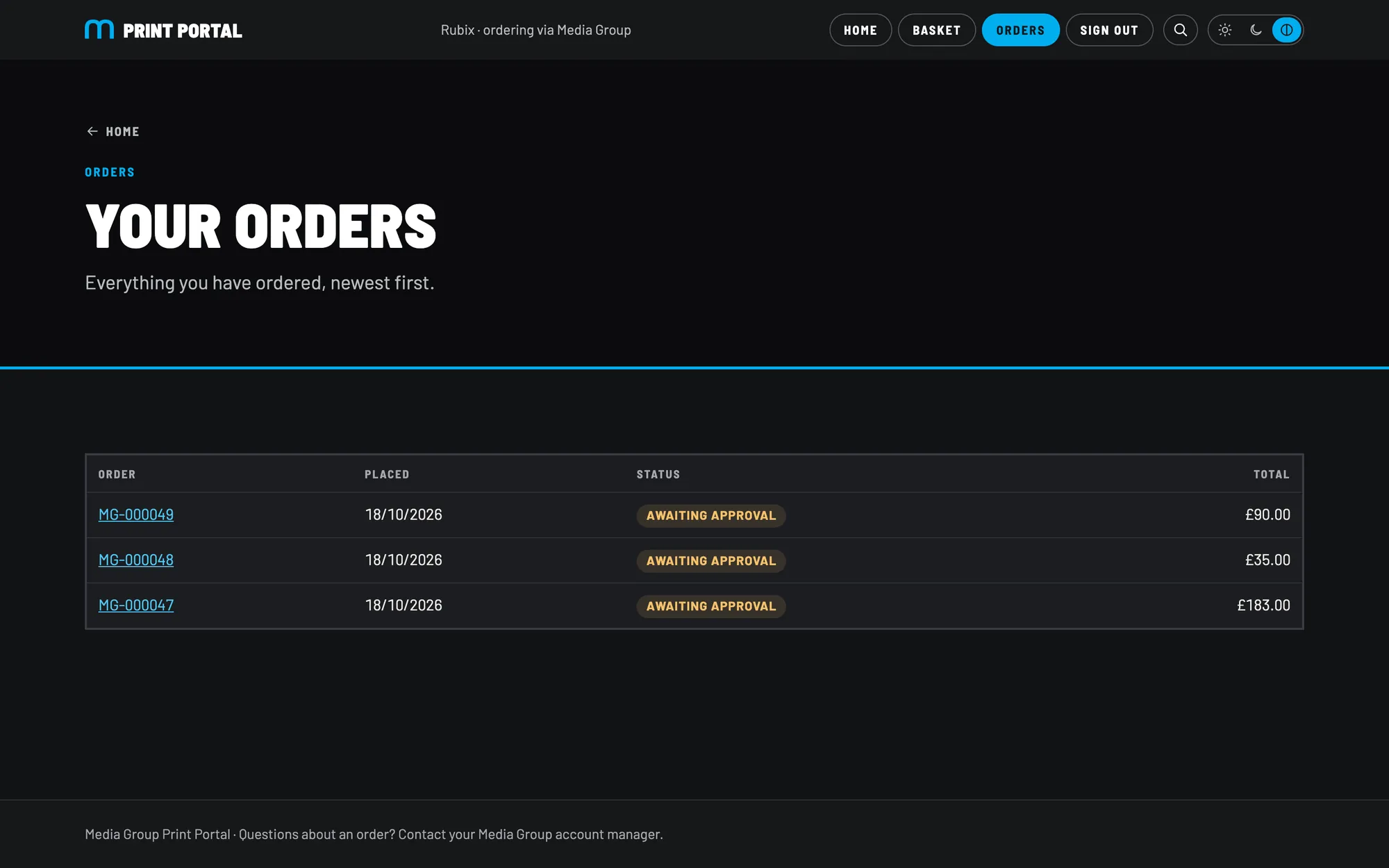
Orders they can follow

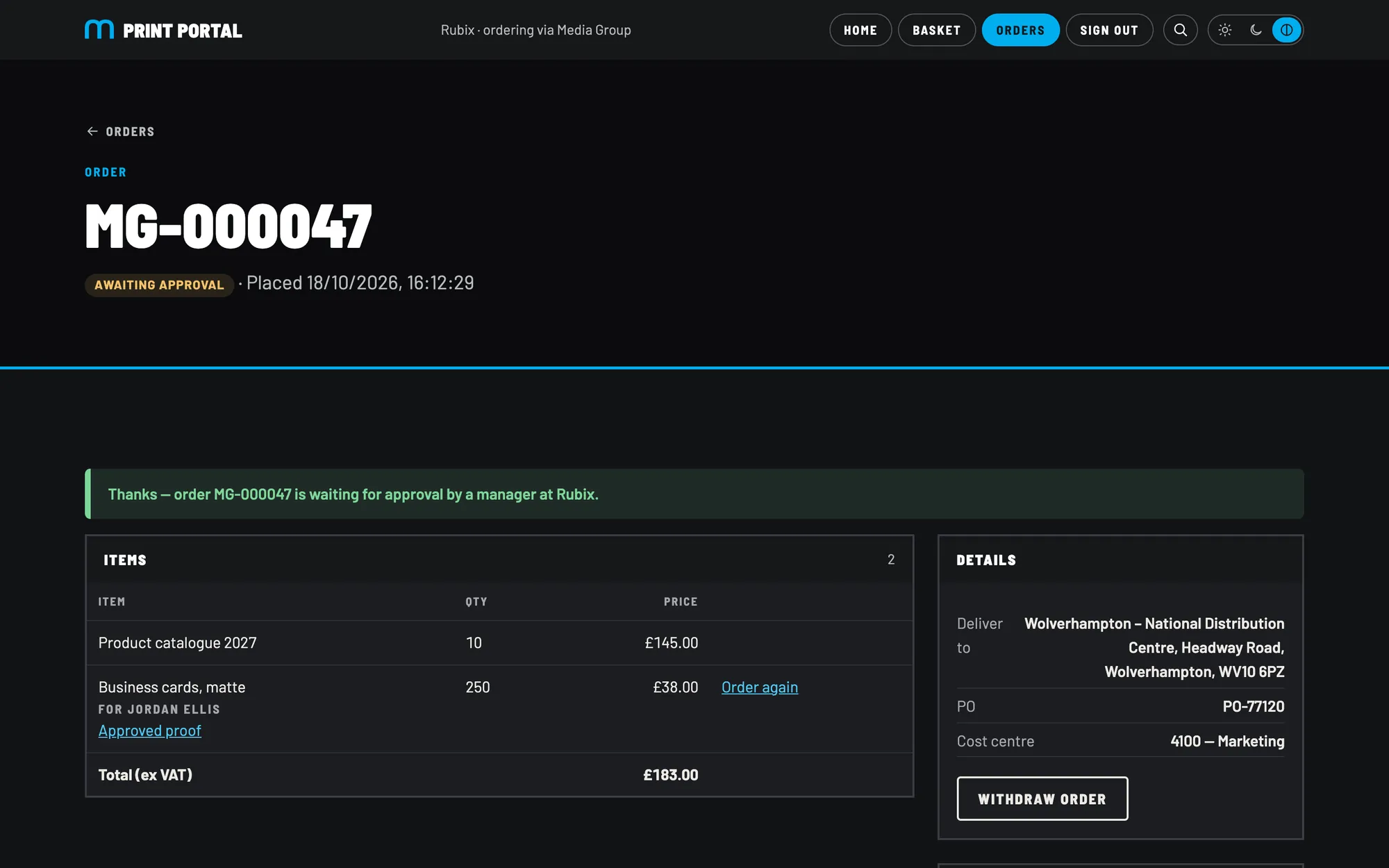
Every order has a status from placed to dispatched, with its history, the approved proofs and a one-click “Order again”.

  1. Clear confirmation of what happens next.
  2. Status at a glance: awaiting approval, new, in production, dispatched.
  3. Order again reopens the editor with the same details filled in.
  4. Withdraw an order while it's still waiting.
The orders list
Their order history
MG-000047
An order waiting for approval

Light or dark, desktop or phone

The whole portal works on a phone, including the card editor, and switches between light and dark themes.

The Rubix portal on a phone
Light theme
The home page in the light theme
The business card editor on a phone

02For the client's managers

Approvals and spend, under control

Switch on approvals for a client and their managers sign off orders before Media Group sees them. Their own orders skip the queue.

Approve or reject in two clicks

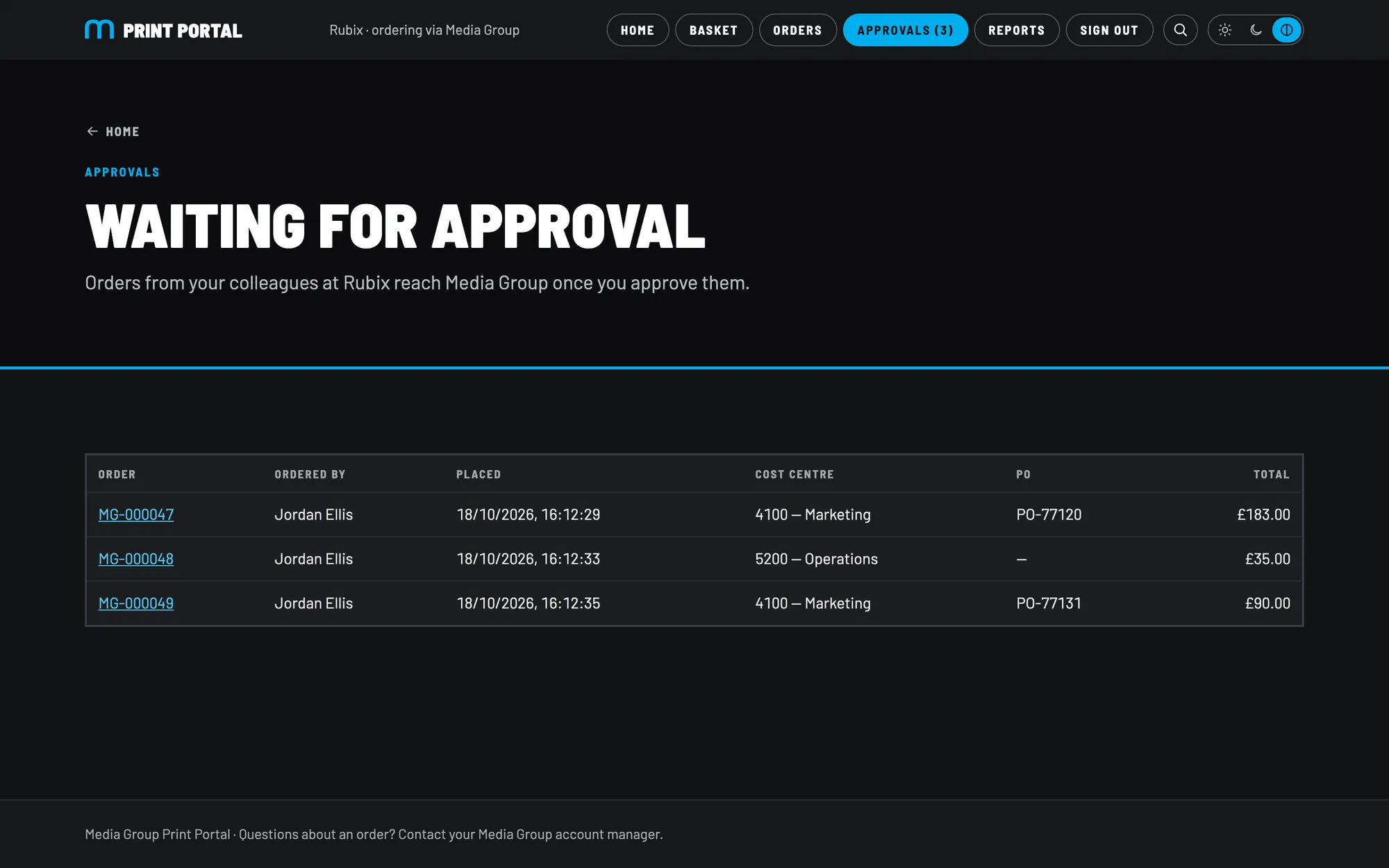
Managers see who ordered what, against which cost centre and PO. They're emailed when something is waiting.

  1. A count in the menu when orders are waiting.
  2. Oldest first, with who, when and how much.
  3. Cost centre and PO on every line.
Waiting for approval
Orders waiting for approval

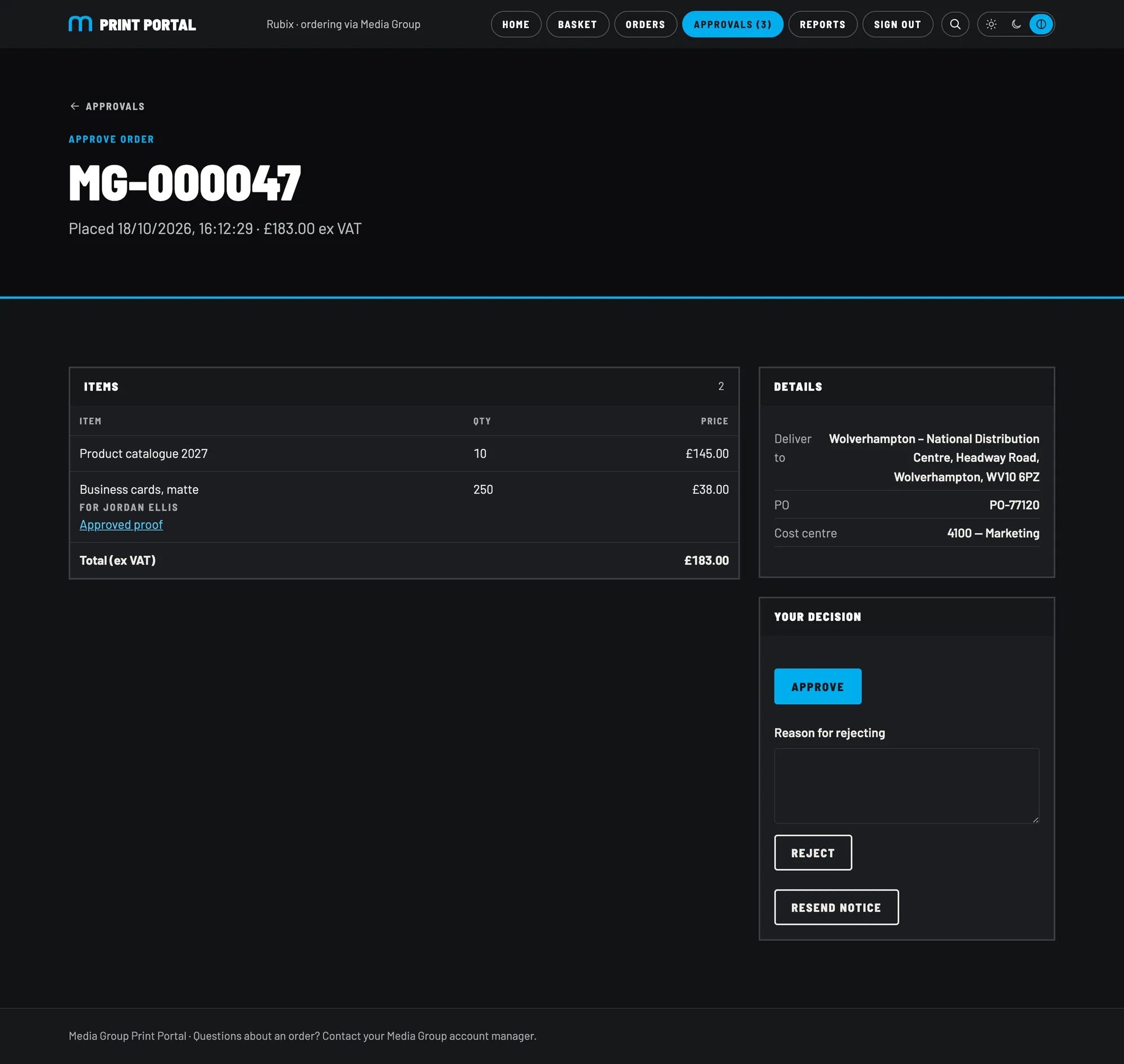
Everything they need to decide

  1. The approved proofs, one click away.
  2. Delivery, PO and cost centre.
  3. Approve sends it straight to Media Group.
  4. Reject with a reason, which the person who ordered sees and is emailed.
  5. Resend notice nudges the other managers.
Approve order
An order to approve

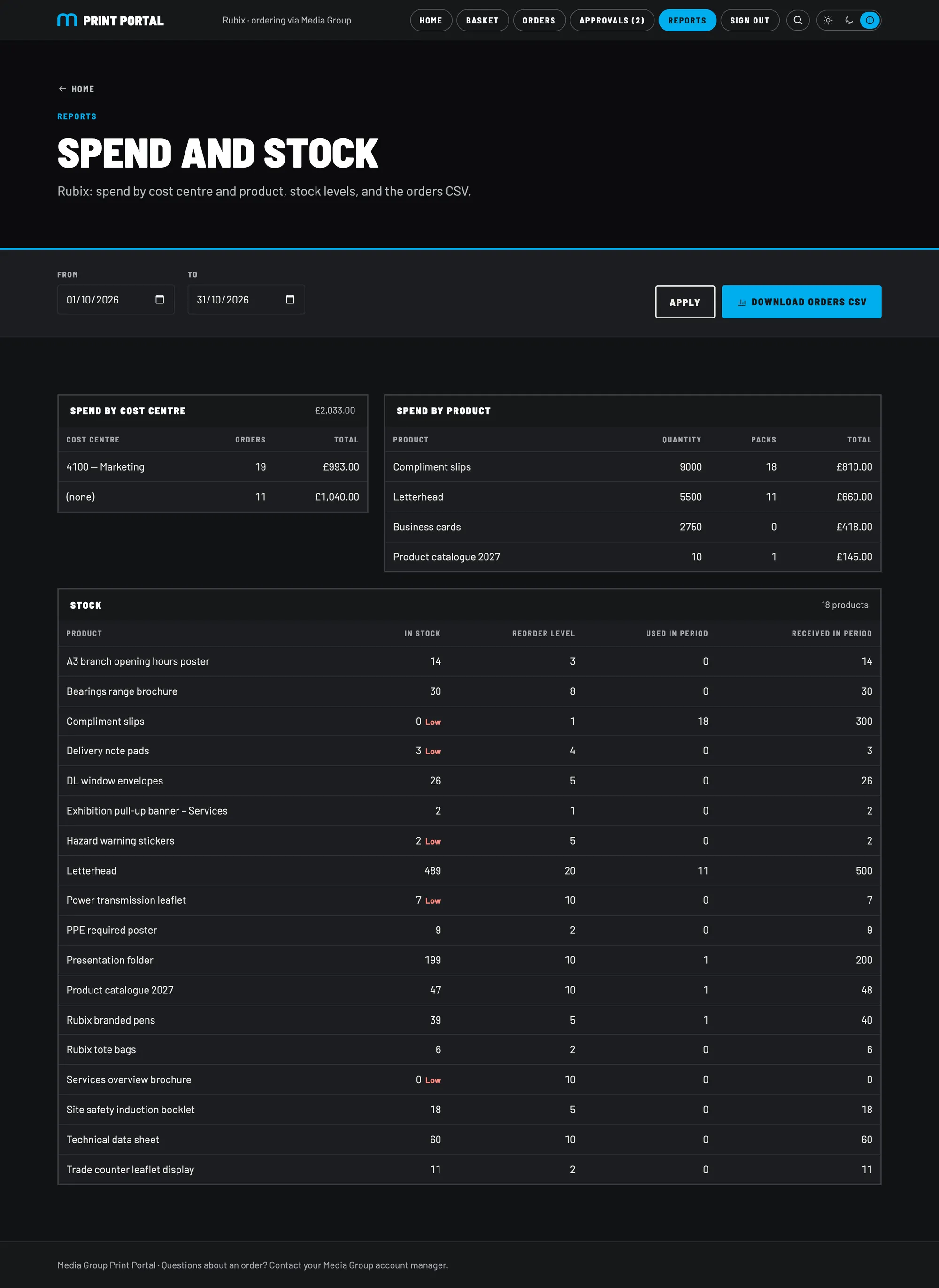
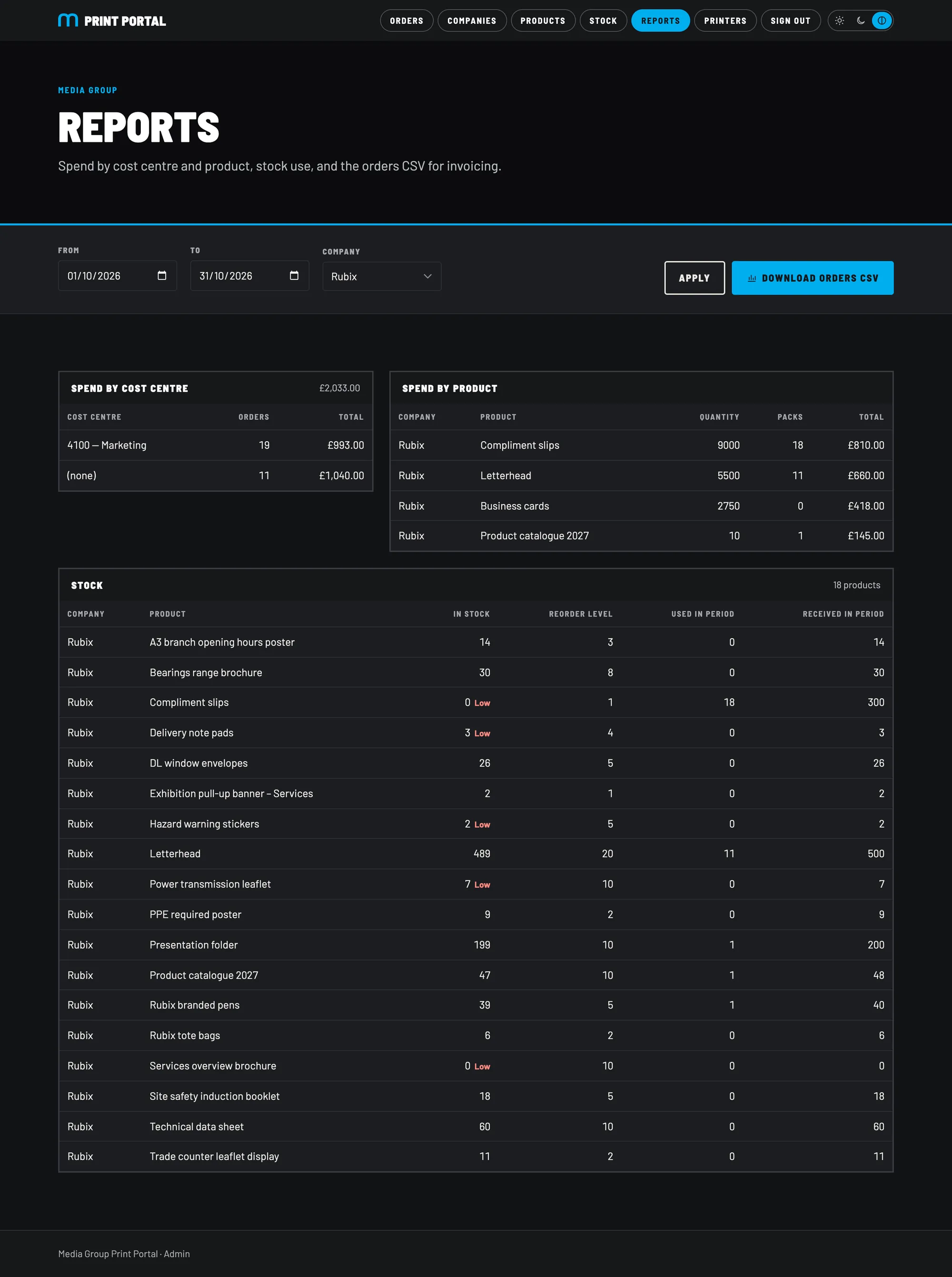
Spend and stock reports

For any date range: spend by cost centre and by product, and stock used and received. Media Group sees the same for every client.

  1. Any date range.
  2. Orders CSV for invoicing: one row per line, ready for Excel.
  3. Spend by cost centre and by product.
  4. Low stock flagged in the stock report.
Spend and stock
The spend and stock report

03The Media Group admin

Run every client from one place

Orders, print files, clients, products, stock, printers and reports. Each is one screen, and none of it needs a developer.

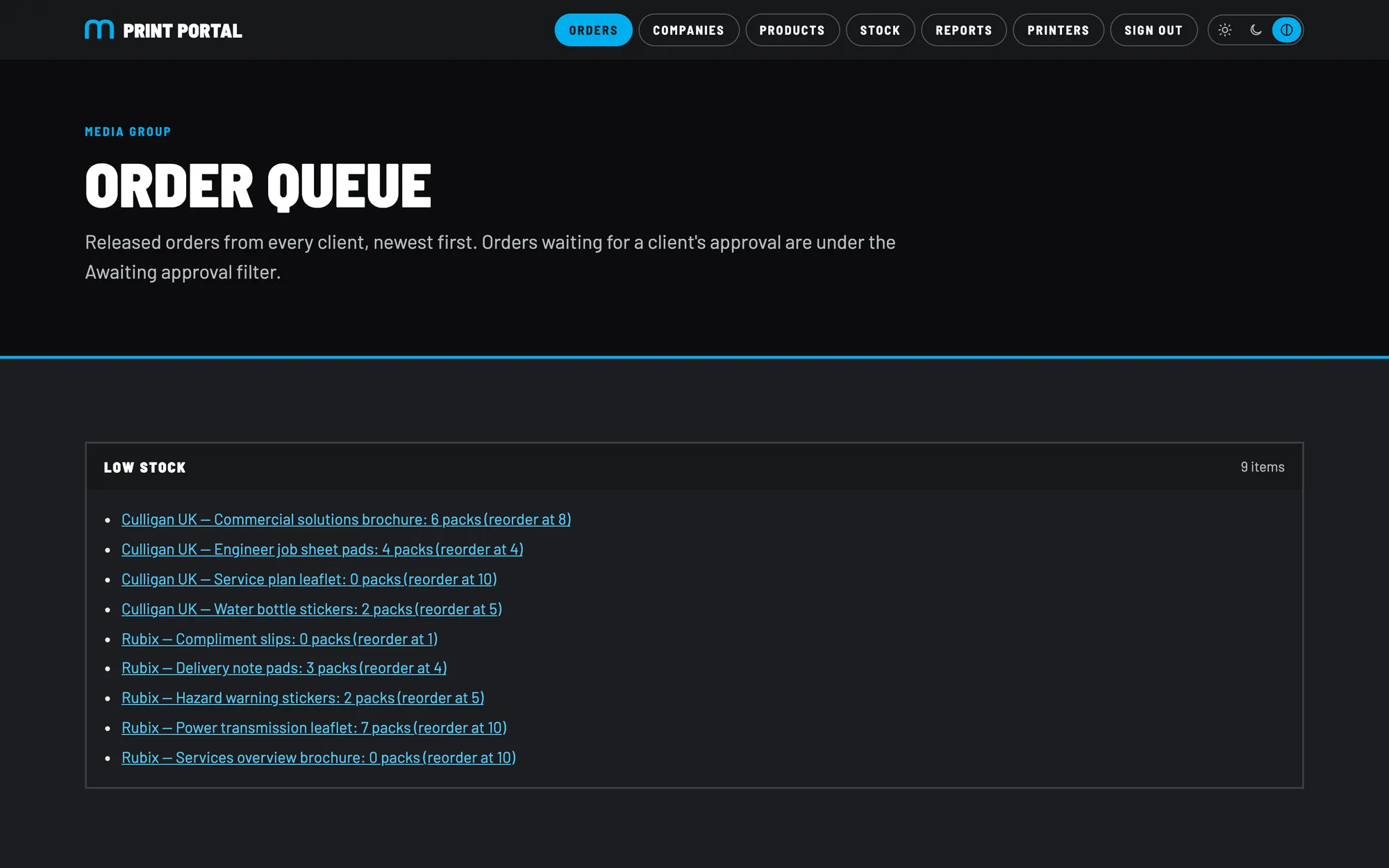
The order queue

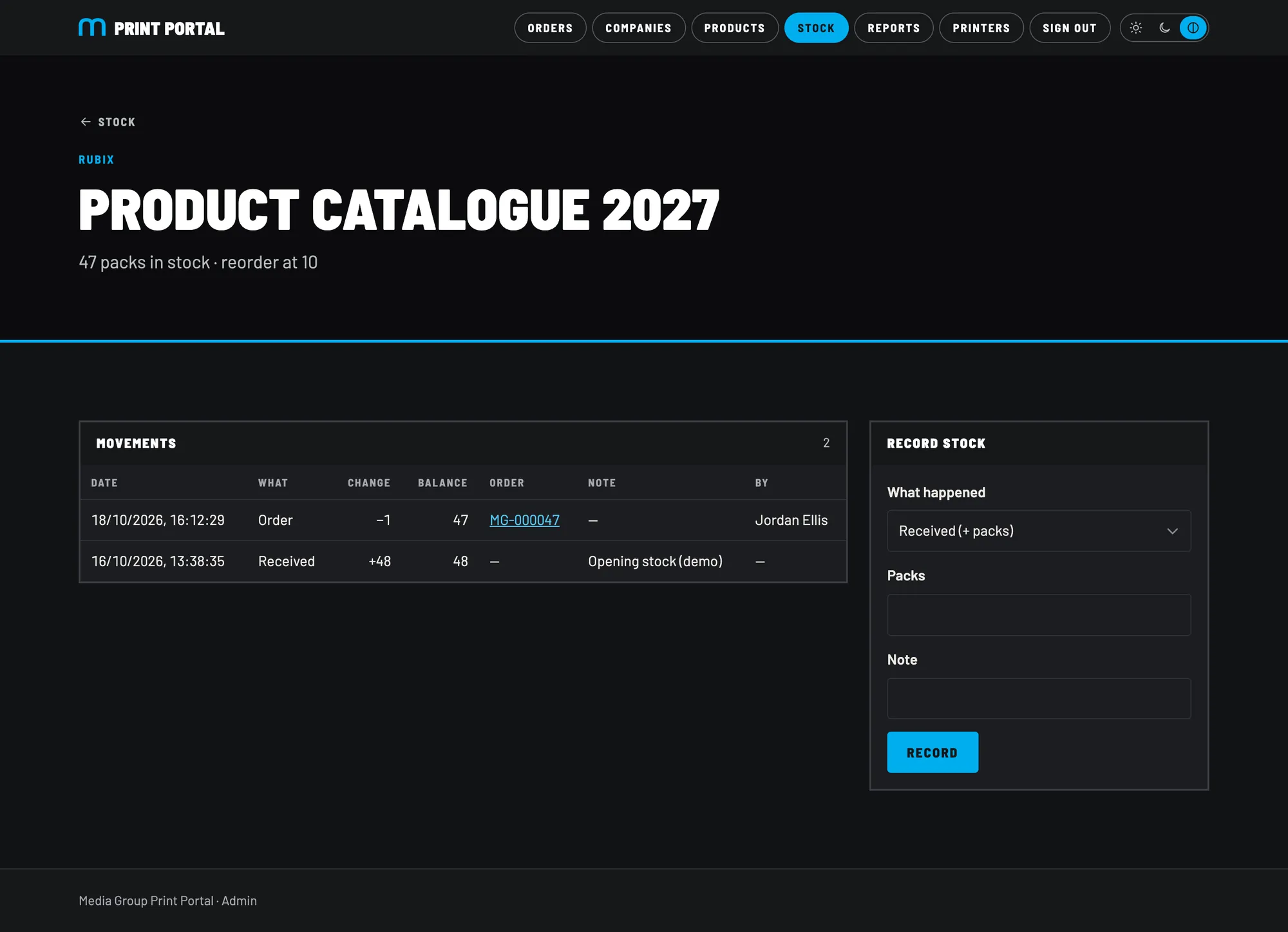
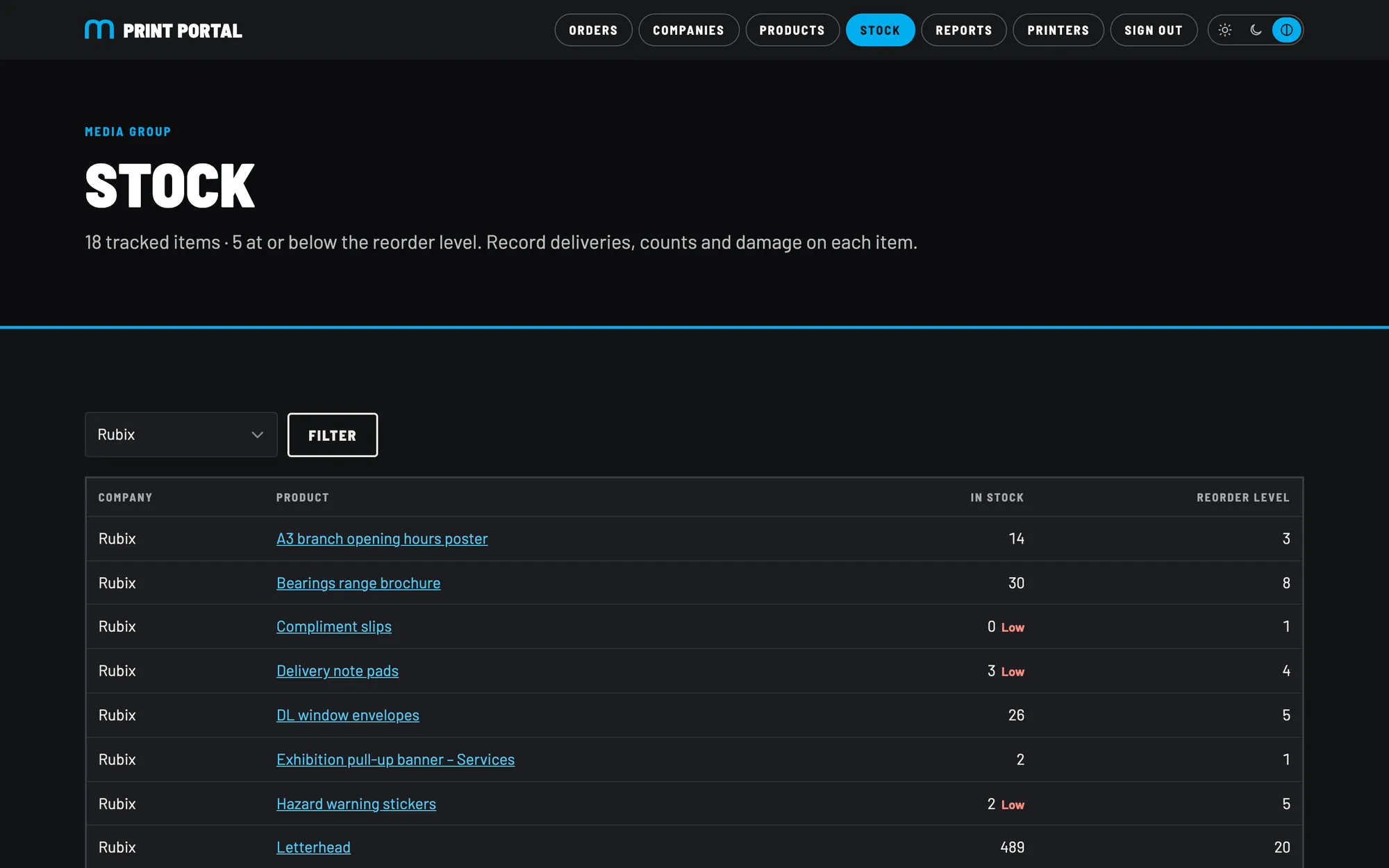
Released orders from every client, newest first, filtered by client and status. Low stock is flagged at the top, so nothing runs out unnoticed.

  1. Low stock, across every client, linked to each item.
  • Statuses: new → in production → dispatched, or cancelled
  • Orders still awaiting a client's approval sit under their own filter
  • An email alert to Media Group for every new order
  • Cancelling an order returns its stock automatically
Order queue
The admin order queue

04Personalised templates

A business card template, built once

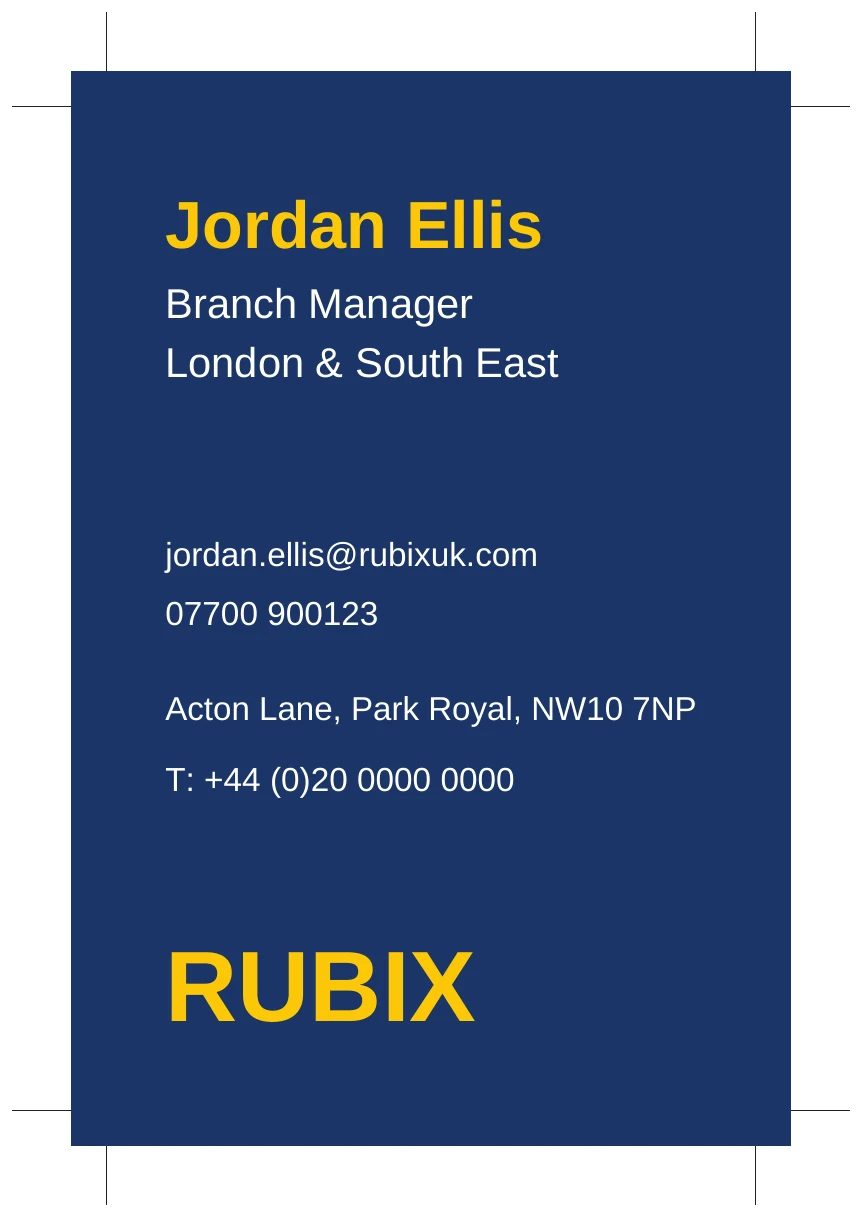
Templates are built from the brand's guidelines or supplied print artwork. Staff fill in only their own details; layout, fonts and colours stay exactly as designed.

1 · The template, ready to fillThe empty Rubix business card template
2 · Jordan's print fileJordan Ellis's finished business card print file
1

Brand in

Rubix's layout, logo, fonts and colours, from their guidelines or artwork.

2

Choose the fields

Name, title, email and mobile are editable. Everything else is locked.

3

Offices built in

Pick an office and its address and phone fill in. Long text shrinks to fit, with a clear “too long” warning.

4

Add it as a product

It appears in the admin's Template list. Give it a name, prices and finishes: live.

5

Every order is a print file

Each person's card is rendered and preflighted on its own.

Media Group stays in control

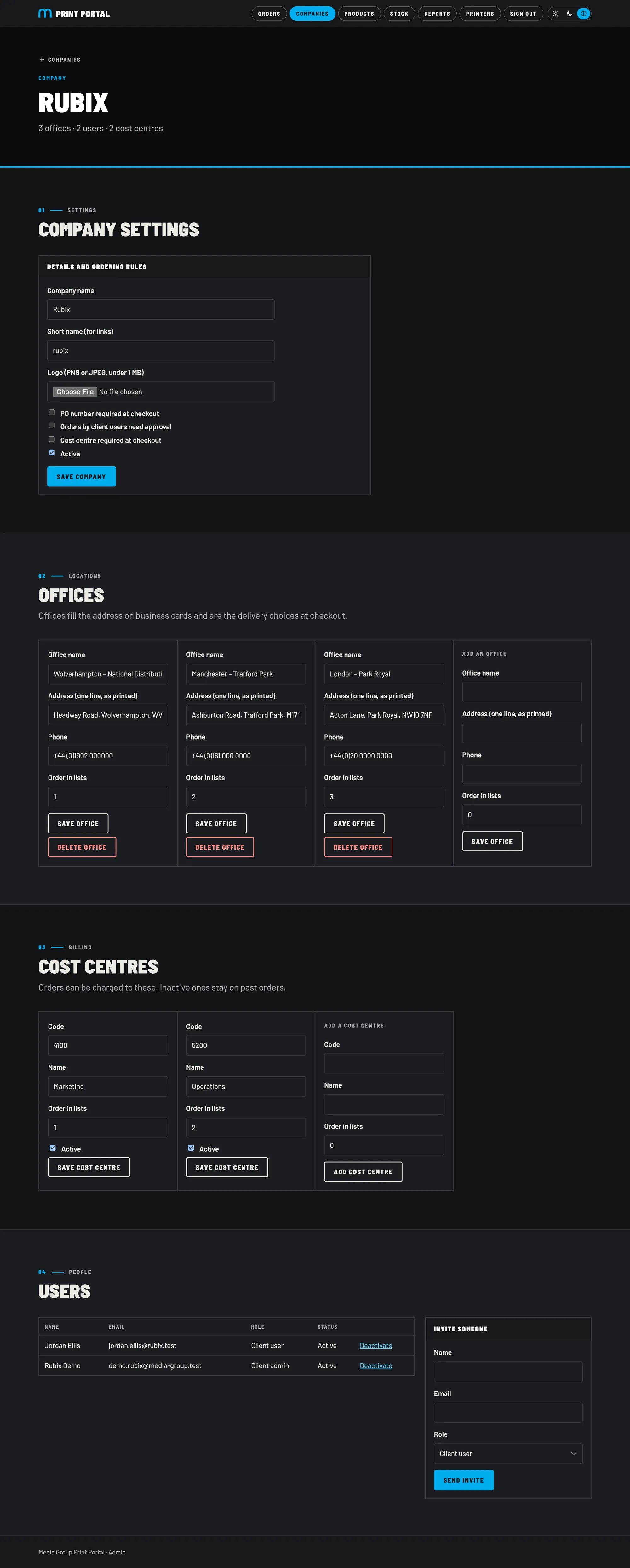
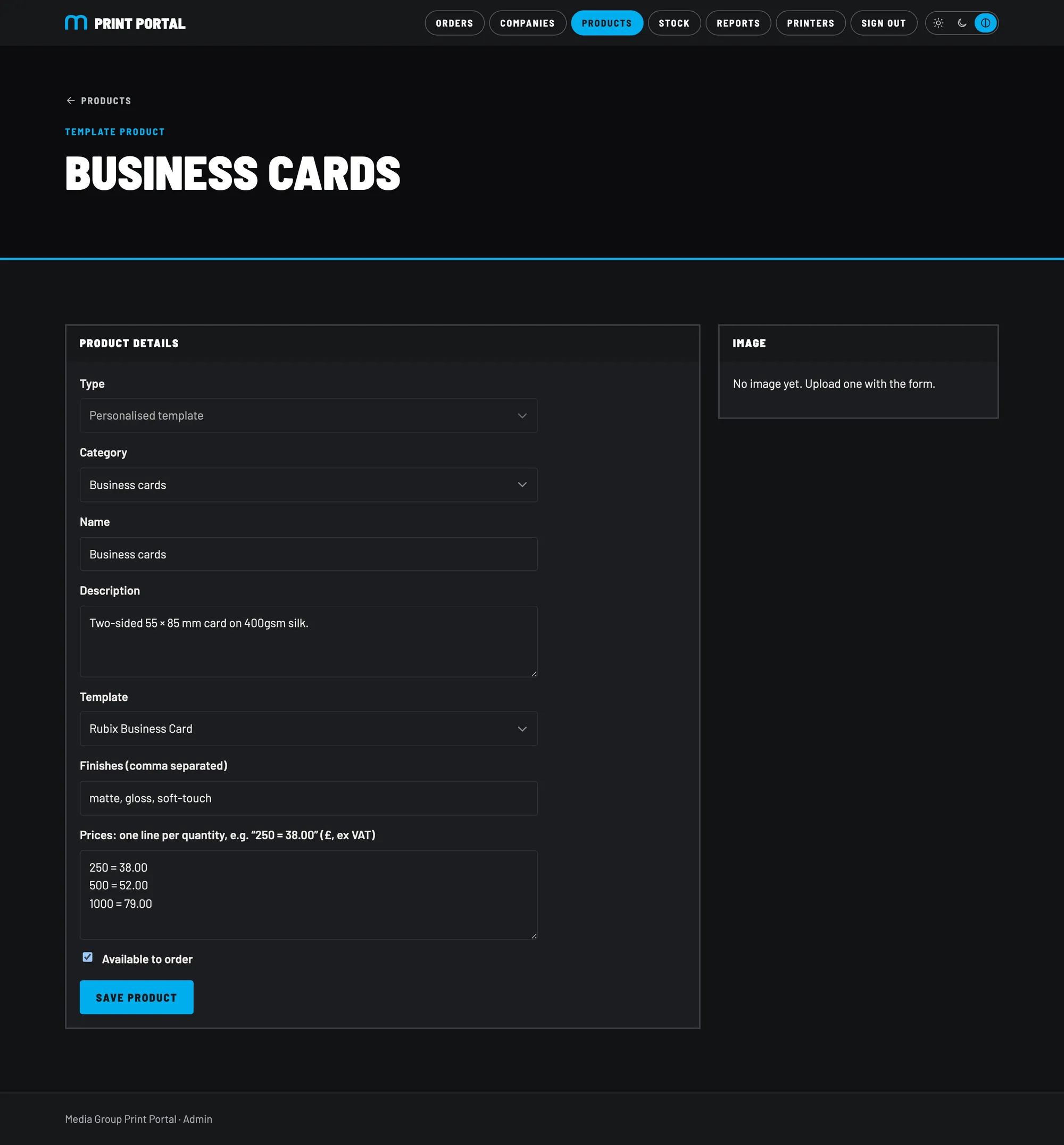
Once a template exists, Media Group decide everything else from the admin: which client gets it, what it's called, its prices and finishes, and whether it's on sale.

  1. Pick the template from the library.
  2. Finishes: matte, gloss, soft-touch.
  3. Price breaks per quantity.
  4. Available to order: on or off.

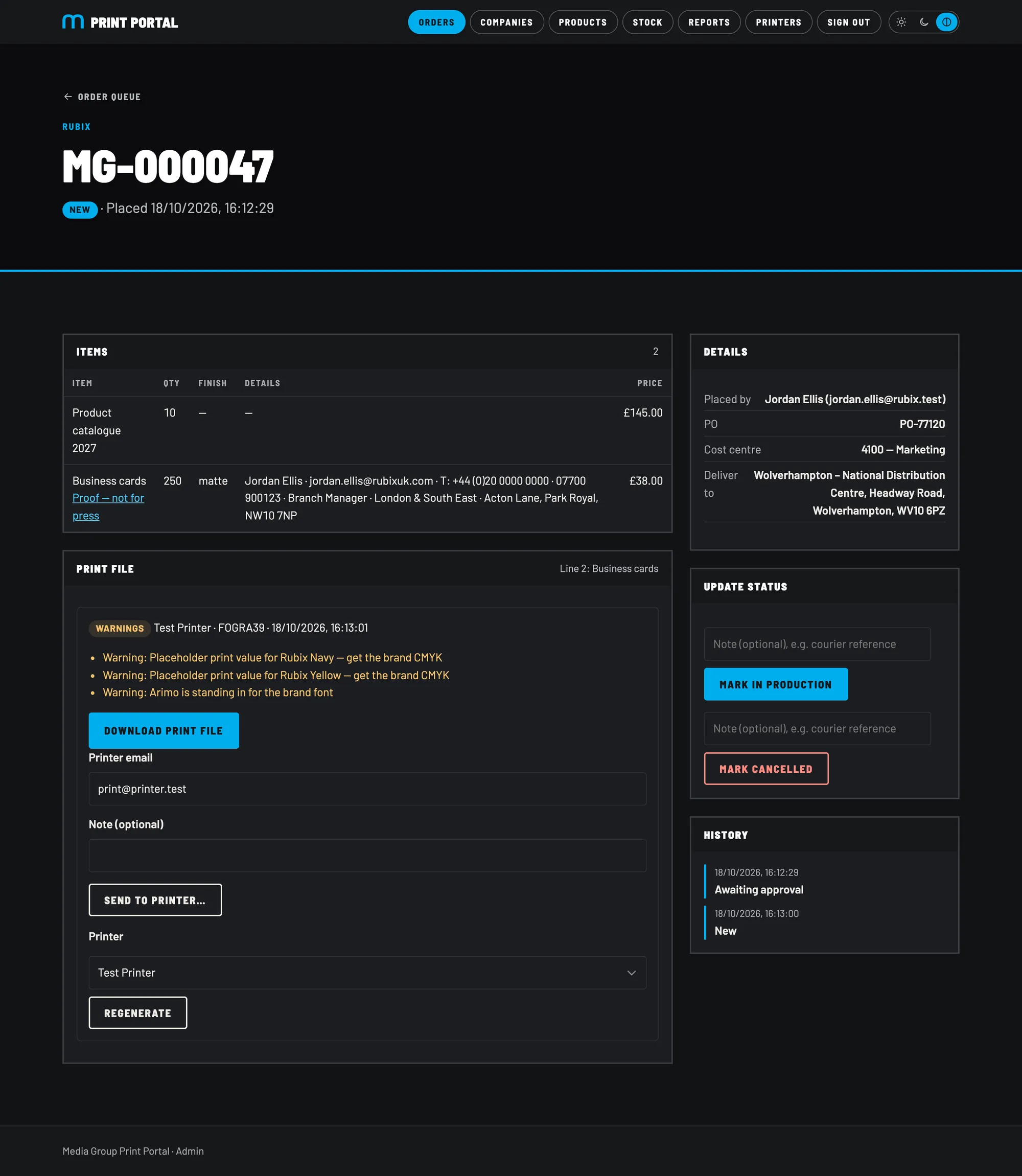
Worth knowing: setting up a new template is a one-off design job in the portal's template library, not a drag-and-drop editor for clients. It's how the files stay press-perfect. For Rubix, the navy and yellow are placeholder print values and Arimo is standing in for the brand font until Rubix confirm both; every print file flags this as a warning, so nothing goes to press on a guess. Templates can also be built on supplied artwork, such as leaflets and flyers.

Business cards · product
The business card template product in the admin

05Print files

Files your printers can trust

Built to the PDF/X-4 standard for each printer, and checked automatically before anyone can download or send them.

Print file, back page Print file, front page with crop marks and bleed 3 mm bleed Crop marks
  • PDF/X-4the print industry standard
  • FOGRA39 / 52coated or uncoated, per printer
  • CMYK onlyno RGB slips through
  • Fonts embeddedno missing-font surprises
  • Bleed & marksto each printer's offset
  • Ink limittotal coverage checked

File nameMG-000047-2_rubix-business-card_print_FOGRA39_2026-10-18.pdf

Checked on every file

PDF/X-4 markersOutput profileNot encryptedPage countTrim boxBleed boxMedia boxCrop marksCMYK colour onlyFonts embeddedNo stray imagesNo overprintInk coverageText inside safe areaEdge colour reaches bleed

A file with errors can't be downloaded or sent. Warnings, such as a brand colour still waiting to be confirmed, are shown on the order.

06Under the bonnet

Built properly

Private by design

Each client's data is walled off in the database itself: a user can only ever read their own company's products and orders.

Invite-only

No sign-up page. People are invited with a role, set their own password, and can be switched off in one click.

Emails that matter

Order confirmations, new-order alerts to Media Group, approval requests, rejections and low-stock alerts.

Hosted in Ireland

The app runs in Dublin beside its database in Ireland: fast for UK users, with data held in the EU.

Tested on every change

Hundreds of automated checks, plus full end-to-end journeys from invite to dispatch, run before each release.

Quick to load

Pages answer straight away with a loading state, then fill in. It works the same on a phone.

07On the Teams call

What we'll walk through

  1. As a client: order stock, personalise a business card, approve the proof, check out
  2. As a manager: approve an order, run a spend report
  3. As Media Group: the order arrives, download its print file, send it to a printer, dispatch
  4. Set-up: add a client, a product and stock in a few minutes
  5. Templates: how new artwork becomes an editable template
  6. Questions, and next steps

Useful to have to hand

  • Stock items per client: images, pack sizes, prices, opening counts and reorder levels
  • Which clients want approvals, and who approves
  • Each client's cost centres, and whether they're required
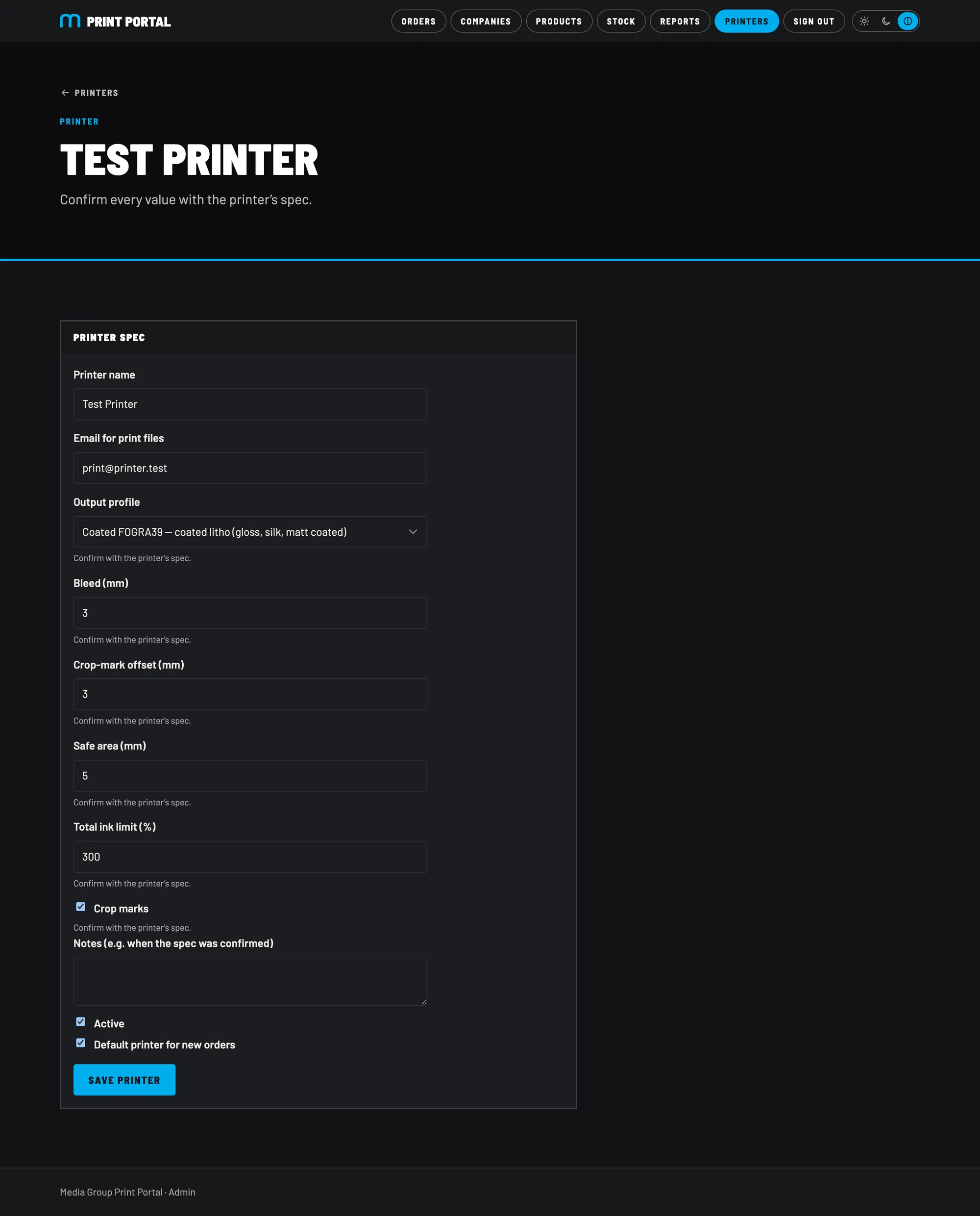
  • Each printer's spec: profile, bleed, marks, safe area, ink limit
  • Rubix brand guidelines: CMYK for the navy and yellow, and the brand font with a licence for print files
  • Whether the invoicing CSV columns suit your accounts team
  • Who at Media Group needs admin access, and the address for new-order alerts

See it live

The portal is running now. Demo logins for Rubix will be shared on the call.

media-group-print-portal.vercel.app ↗